Compare two designs
Goal: find out exactly what differs between version V1 and the latest design, and see it in 3D.
Open Compare
Click the Compare button in the panel’s title bar, or press Ctrl+Shift+D. You can also right-click any version or history entry and choose Compare with latest.
Choose what to compare
Pick From and To. The lists contain the latest state of your workspace, the other workspaces, all versions and recent history entries.
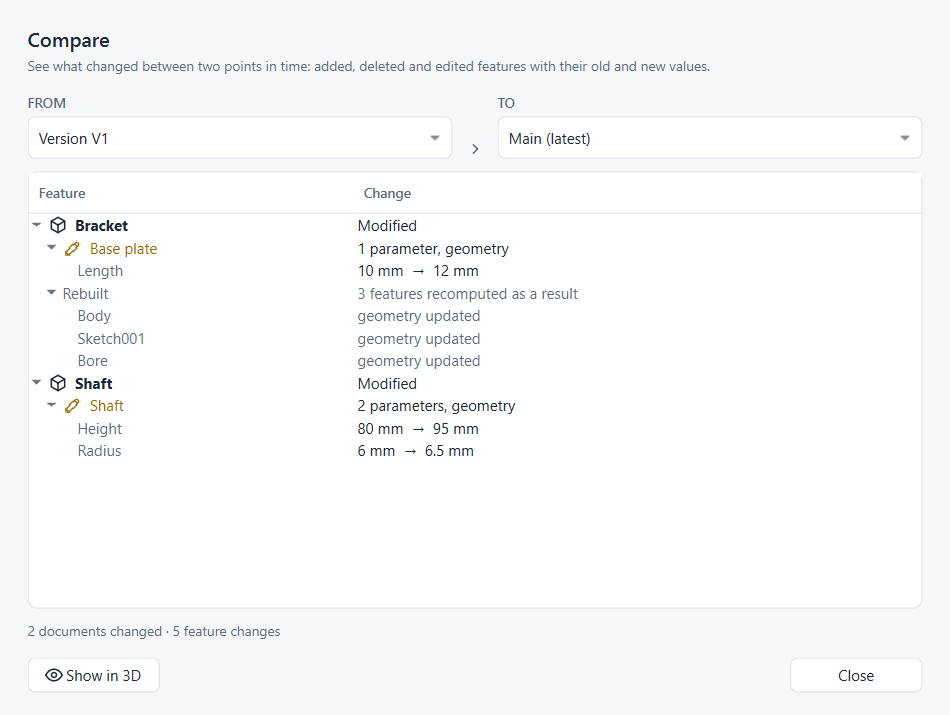
The tree shows one branch per changed document:
-
Added and Deleted features with their type, in green and red;
-
edited features in amber, with every changed parameter and its old → new value;
-
a Rebuilt group for features that were only recomputed because of the edits above them.
The summary below the tree counts the documents and feature changes.
Overlay in 3D
-
Select a document, or any feature inside it, in the tree.
-
Click Show in 3D.
Strata opens a new document, Compare Bracket: V2 → LW-1, with both states of the part: the earlier one in translucent red and the later one in blue. The summary reports the volume change, for example Volume Bracket: 27350.8 mm³ → 13675.4 mm³ (-50.0%).
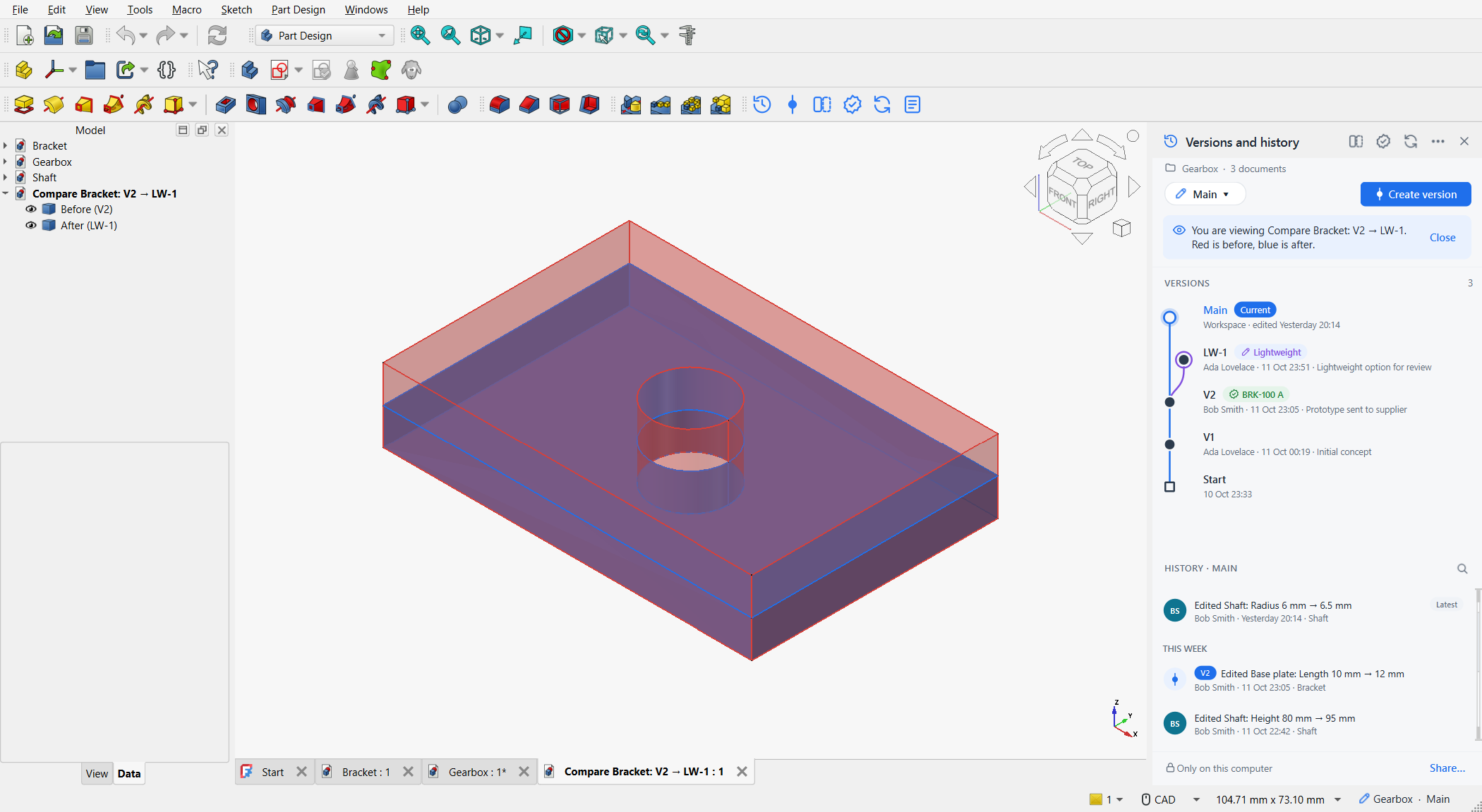
The comparison document is temporary. Close it with the banner’s Close, or close its tab.