Work as a team
Goal: Ada shares the Gearbox project; Bob opens it, both work and sync.
Choose a shared location
Any of these works:
- Network folder
-
for example
\\server\cad\Gearboxor a mounted share. - Synced drive
-
a folder in OneDrive, Nextcloud, Dropbox or similar.
- Git server
-
an address such as
git.example.com/cad/Gearbox.giton GitHub, GitLab, Gitea or your company’s server. Git’s normal sign-in applies; on Windows the Git Credential Manager asks once.
For a folder, Strata prepares it the first time. If the folder already contains other files, Strata creates a sub-folder Gearbox.strata in it.
Share a project
-
Click Share… in the panel footer, or press Ctrl+Shift+Y.
-
Enter or browse to the shared location.
-
Click Share and sync.
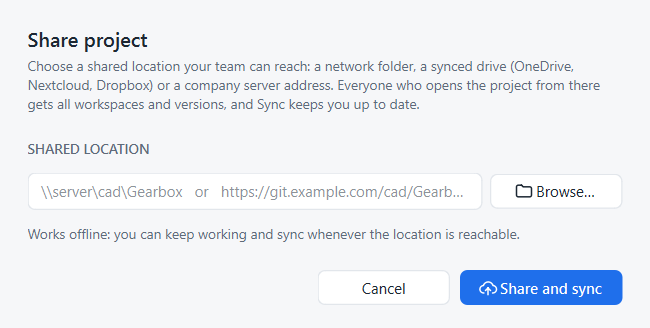
The footer now reads Shared · synced just now.
Open a colleague’s project
-
Open the panel’s ⋯ menu and choose Open a shared project….
-
Enter the shared location, and an empty folder for your copy.
-
Click Open project.
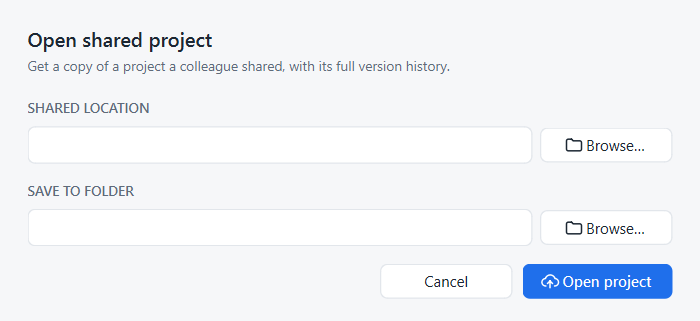
Strata copies the project with its complete history, versions and releases, and opens its documents.
Sync
Click Sync now in the footer, or press Ctrl+Shift+Y, whenever you want to exchange work:
-
your new history, versions, releases and workspaces are sent;
-
your colleagues' are fetched. If only they changed your current workspace, your documents are updated and reloaded;
-
if you both changed it, Strata merges automatically as long as you changed different documents;
-
if you both changed the same document, Strata asks whether to review and merge now, and opens the merge dialog. See Merge.
Colleagues' new workspaces appear in the workspace menu marked (from team).
Good habits
-
Sync before you start and when you finish a piece of work.
-
Agree who works on which document at a time. Strata has no file locking yet, so two people editing the same document leads to a merge choice.
-
Use workspaces for longer experiments, so Main stays clean for everybody.
| History stays on your computer until you sync. If you never share, nothing leaves your computer. |