Everything you see on screen, what it means and what you can do with it.
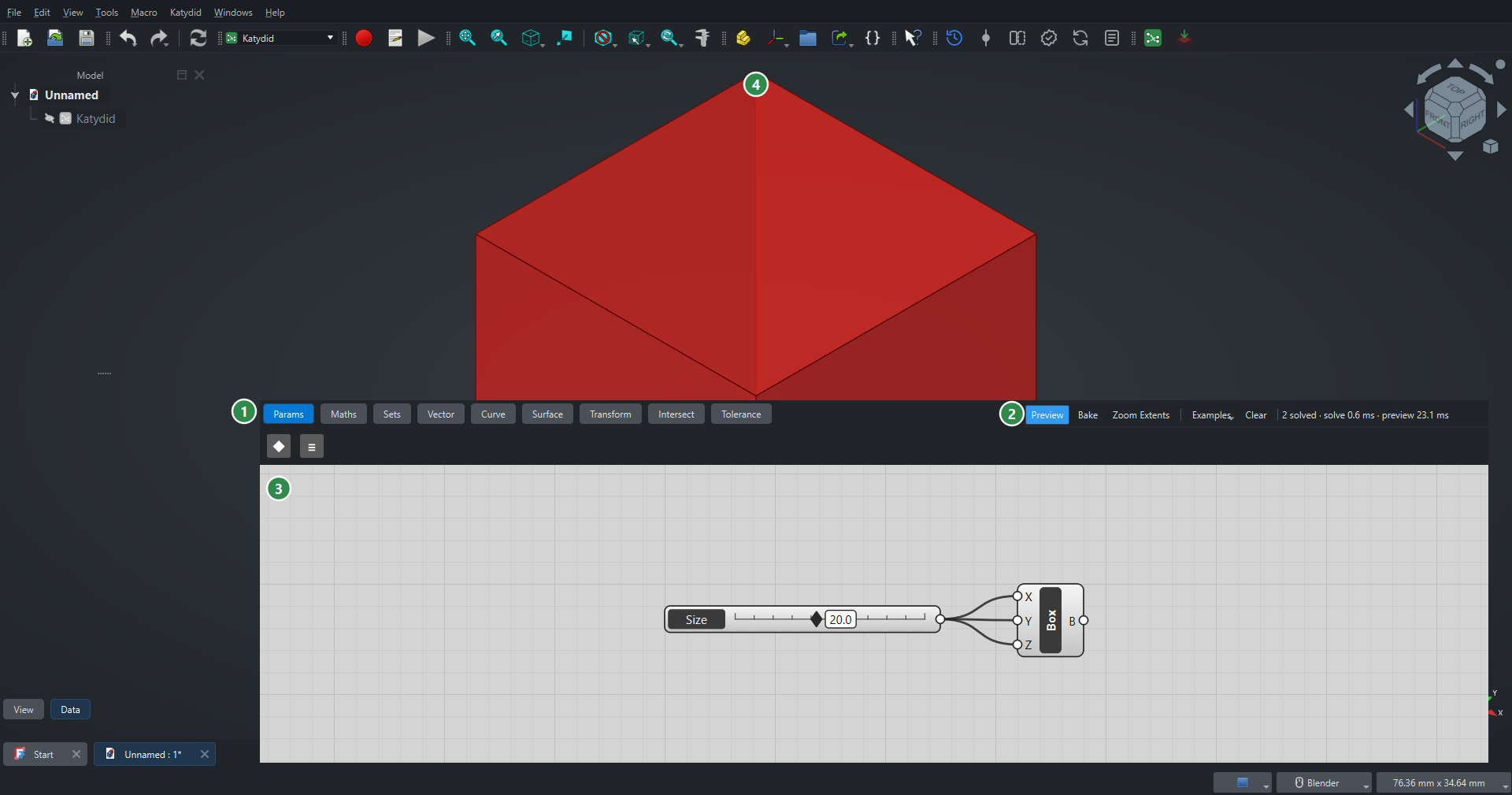
| 1 Component tabs |
Every component, grouped by tab. Click an icon to place it in the middle of the canvas, or drag it to where you want it. |
| 2 Toolbar and status line |
Preview, Bake, Zoom Extents, the example definitions, Clear, and the timing of the last update. |
| 3 Canvas |
Where you place and wire components. |
| 4 3D view |
FreeCAD’s own view, where Katydid draws its preview. |
The window
The canvas opens as a floating window. You can move and resize it like any window, or drag its title bar onto an edge of FreeCAD’s main window to dock it. It floats by default for a measured reason: docked inside FreeCAD, every canvas redraw also makes Qt redraw the whole OpenGL main window, which roughly halves the update rate.
The window title shows which document the canvas belongs to (Katydid — Unnamed). The canvas always follows FreeCAD’s active document: switch to another document’s tab and the canvas switches with it.
The toolbar
Preview |
Turn the whole 3D preview on or off. Turning it off makes heavy definitions faster to edit. |
Bake |
Copy the previewed geometry into the FreeCAD document as ordinary objects. With components selected, only those are baked. |
Zoom Extents |
Fit all components into the canvas. |
Examples |
Load an example definition: the tutorial definitions, the gallery designs and the tolerance examples. An example replaces what is on the canvas. |
Clear |
Remove every component from the canvas. |
Status line |
How many components the last update recomputed, the solve time and the preview time. |
Components
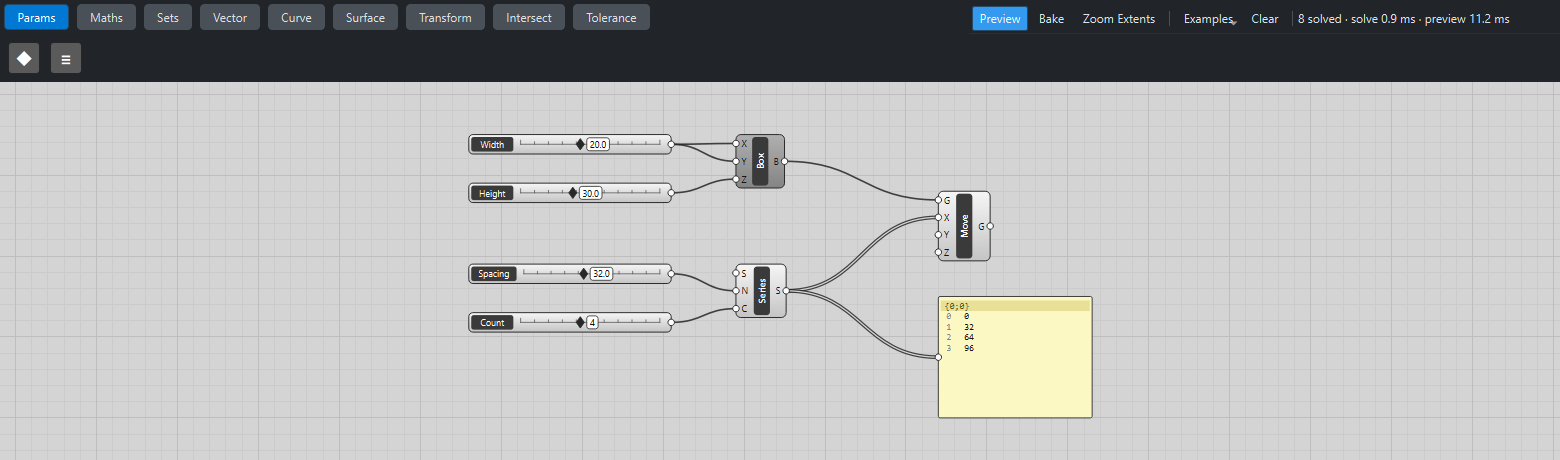
A component is a rounded box. Its inputs are on the left, its outputs on the right, and its nickname runs down the dark band in the middle. Each input and output has a grip, the small circle on the edge, where wires attach.
Hover over a component to see its full name, a description and any messages. Hover over a grip to see the parameter’s name, its access mode (item, list or tree) and, for outputs, how much data it holds (for example "6 items in 4 branches").
Colours
Light grey |
OK. |
Darker grey |
OK, but its preview is switched off (Ctrl+Q or right-click Preview). |
Orange, with a ! badge |
Warning: an input has no data. Wire something into it or give it a value. |
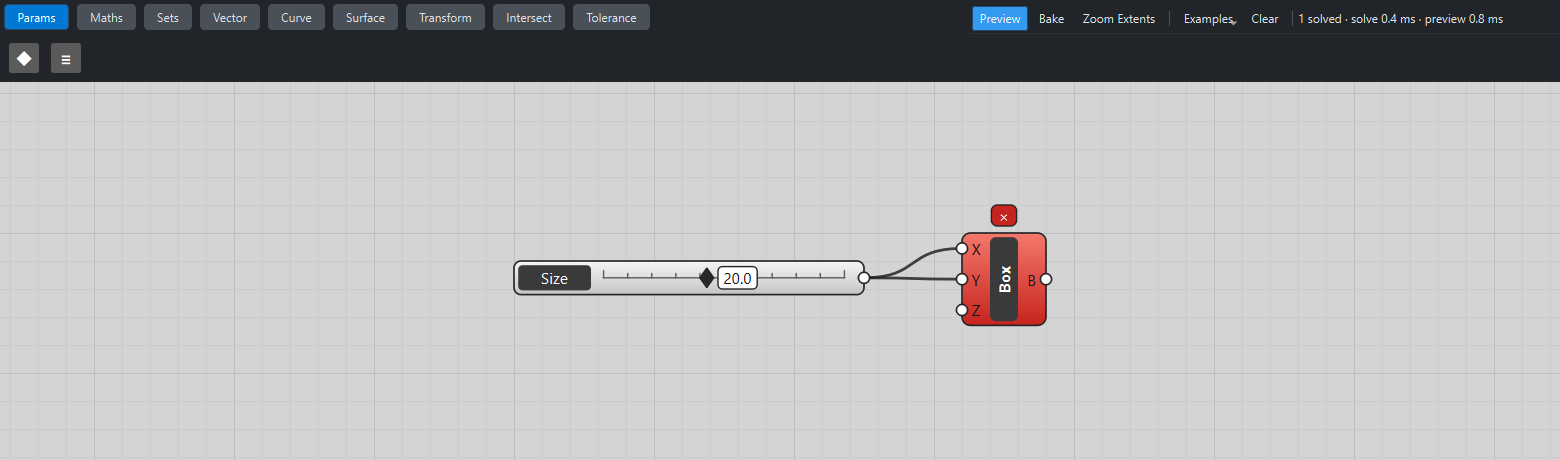
Red, with a × badge |
Error: the component could not compute. Hover over it to read why. |
Green |
Selected. |
When you zoom far out, labels are hidden and only the shapes and wires remain, so large definitions stay readable as a map.
Number Slider
A slider has a dark name label on the left and a rail with a diamond-shaped knob. Drag the knob, or click anywhere on the rail to jump there. Its value is shown in a small box riding next to the knob.
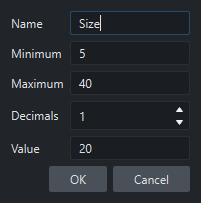
Double-click the name label to open the slider editor, where you set the name, the minimum, the maximum, the number of decimals and the value.
Panel
A Panel is the pale yellow note-like component. It shows whatever is wired into it, grouped under the paths of its branches, with each item’s index in grey on the left. Wire several outputs into one panel to see them together. If the data does not fit, the last line says how many more items there are.
Wires
Drag from an output grip to an input grip to connect them; you can also start from an input that has no wires and drag back to an output. When you release on an input that already has a wire, the new wire replaces the old one; hold Shift while releasing to add it instead.
To remove a wire, press on the input end, drag the wire away and release over empty canvas. Wires that would create a loop, or connect a component to itself, are refused.
The style of a wire tells you what is flowing through it:
Thin solid line |
A single item. |
Double line |
A list of items. |
Dashed line |
A tree with several branches. See Data trees. |
Thin dashed orange line |
Nothing at all: the source has no data. |
Green |
A wire attached to a selected component. |
Menus
Right-click without moving the mouse to open a menu. (Right-drag pans; a right click opens the menu.)
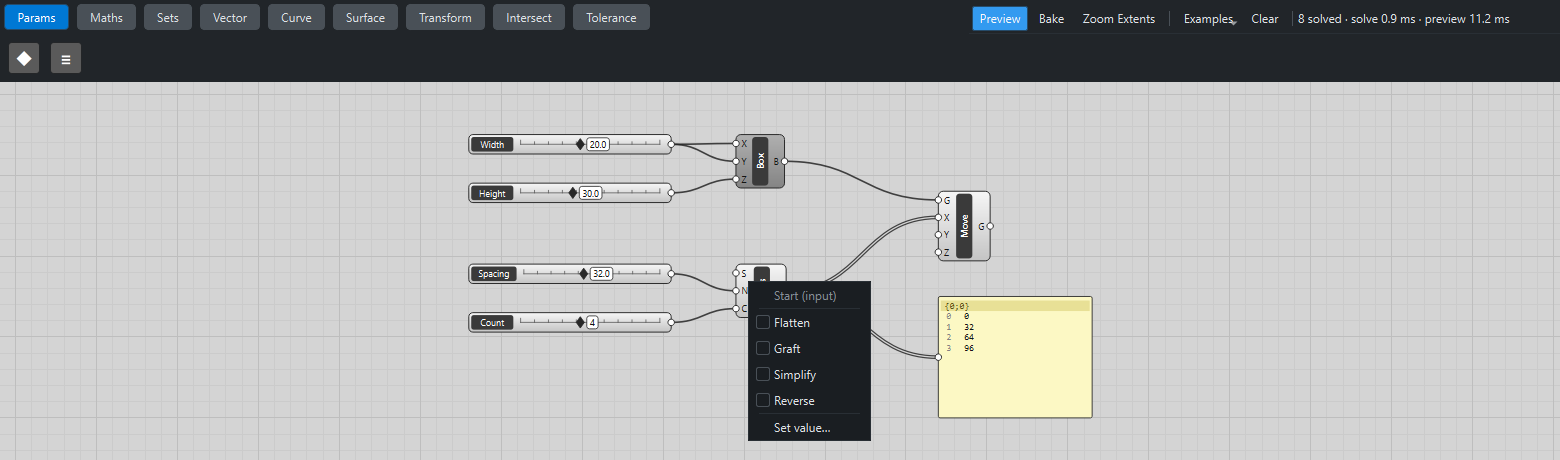
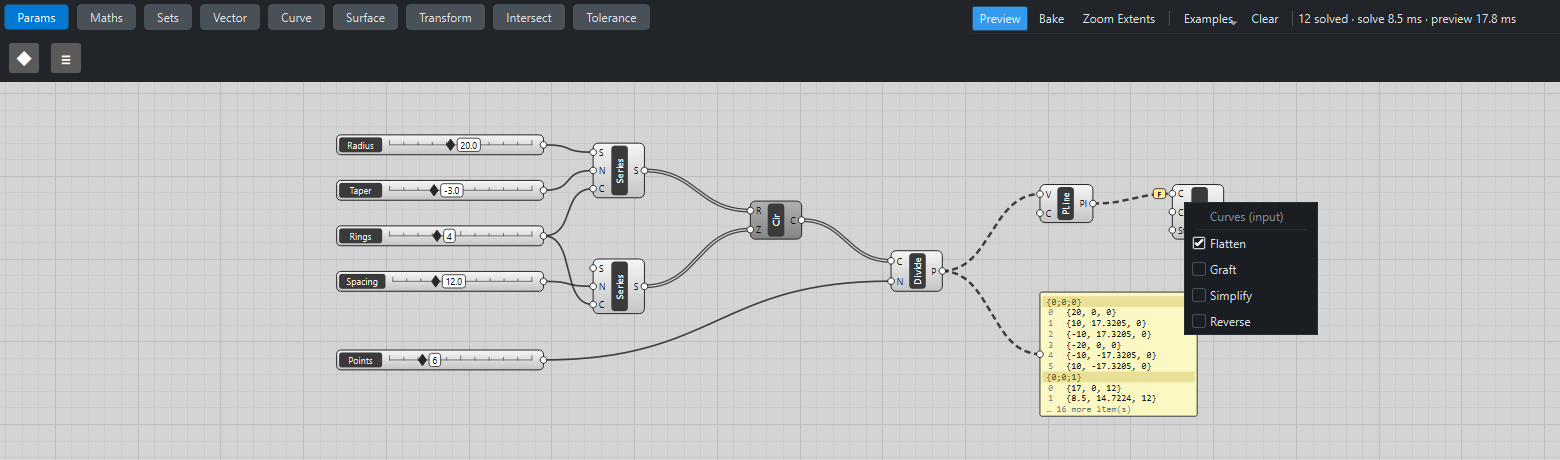
On a grip, the menu sets the grip’s data mapping: Flatten, Graft or Simplify (at most one) and Reverse. A small yellow badge next to the grip shows which are set: F, G, S and R. On an input that is not wired, Set value… lets you type the value the input uses on its own: a number, text, True or False, or a point as x, y, z.
On a component, the menu has Preview (on or off) and Delete.
Search
Double-click an empty spot of the canvas to open the search box there. Type part of a component’s name, nickname, tab or description; use ↑ and ↓ to pick, Enter to place, Esc to cancel. Clicking a result also places it.
Preview and bake
Every component whose outputs are geometry draws a translucent preview in the 3D view: red normally, green when the component is selected. Solids and surfaces are shaded with dark edges, curves are drawn as thick lines and points as dots. The preview never changes your document and cannot be selected in the 3D view.
Bake turns the preview into FreeCAD objects. Ctrl+Z in FreeCAD undoes a bake in one step. Baked objects are ordinary shapes: they do not update when you change the canvas, so bake again after changes.
Selecting and moving
Click a component to select it; drag on empty canvas to select several with a rectangle. Drag a component (anywhere except a grip or a slider’s rail) to move it. Delete removes the selected components from the canvas; it never deletes objects in your FreeCAD document, even though Delete means that in FreeCAD’s own model tree.