In five minutes: place two components, wire them, drag a slider and watch a box resize, then bake it into your FreeCAD document and save.
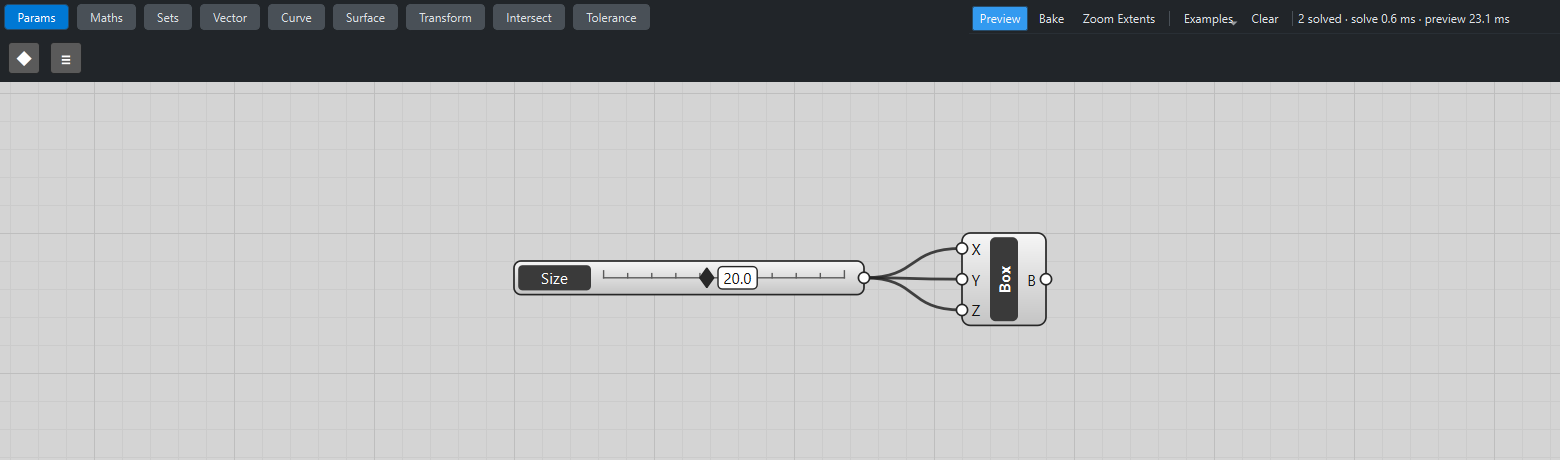
1. Open the canvas
Switch to the Katydid workbench. The canvas opens as a floating window over FreeCAD. If you closed it, use or the canvas button on the Katydid toolbar.
Katydid works on the active document. If no document is open it creates one, because the preview needs a 3D view.
2. Place a slider
Double-click an empty spot on the canvas. A search box appears under the cursor.
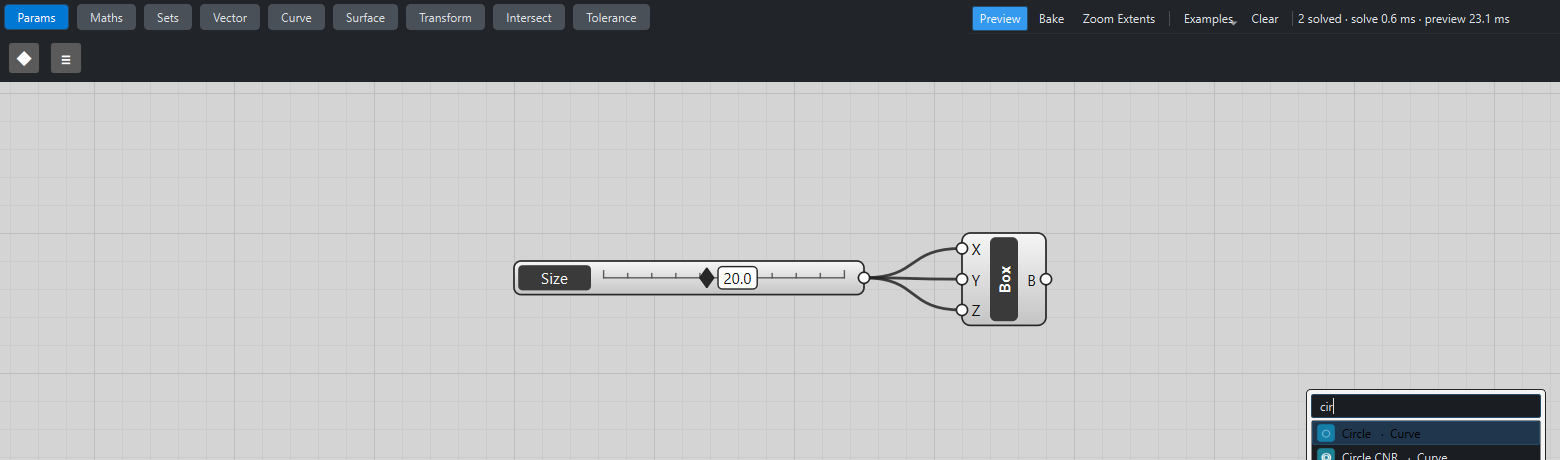
Type slider, then press Enter. A Number Slider appears where you double-clicked.
| You can also click a component’s icon in the tabs along the top (Number Slider is the first icon on the Params tab), or drag the icon onto the canvas. |
3. Set up the slider
Double-click the slider’s dark name label. The slider editor opens:
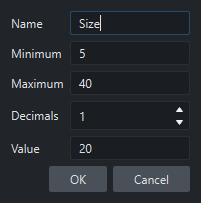
Set Name to Size, Minimum to 5, Maximum to 40, Value to 20, and click OK.
4. Place a box
Double-click empty canvas again, type box and press Enter to place a Center Box. Its inputs X, Y and Z are on the left, its output B on the right.
The box already shows a 10 × 10 × 10 preview in the 3D view, because every input has a default value.
5. Wire them
Press on the slider’s output grip (the small circle on its right edge) and drag onto the Box’s X grip. Release. A wire appears and the box takes the slider’s value for X.
Do the same from the slider to Y and to Z. One output can feed any number of inputs.
6. Drag the slider
Drag the slider’s diamond along its rail. The box in the 3D view grows and shrinks as you drag.

The status line at the top right of the canvas shows how many components were recomputed and how long the solve and the preview took.
7. Bake it
The red preview is not part of your document yet. Click Bake on the canvas toolbar: the box is added to the document as an ordinary FreeCAD object (a Part::Feature), which you can use with any other workbench. Bake adds everything previewed, or only the selected components if any are selected. Ctrl+Z in FreeCAD undoes a bake in one step.
8. Save
Save the FreeCAD file as usual with Ctrl+S. The canvas is stored inside it, on a small Katydid object you can see in the model tree. Close and reopen the file: the canvas comes back exactly as you left it. Double-click the Katydid object to bring the canvas up if it is hidden. See Saving and files for details.
Where next
-
The canvas: everything on screen, explained.
-
Shortcuts: every gesture and key.
-
Tutorials: lists, data trees, the attractor grid and tolerance analysis.