Assemblies
The Assemblies application is FreeCAD 1.1’s Assembly workbench. It shows the Modeling ribbon with the Assemblies tab in front, so modelling commands stay at hand.
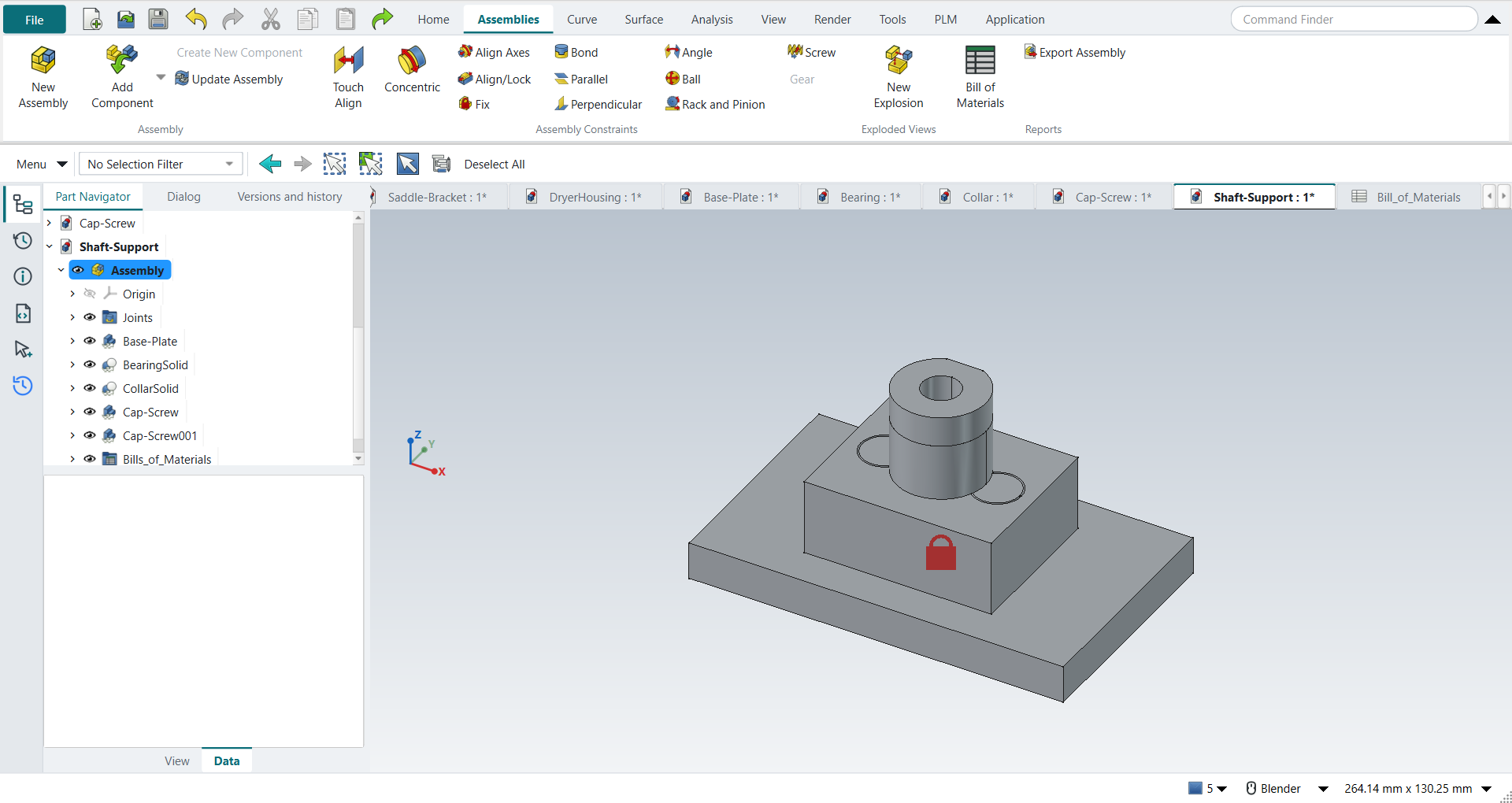
A new assembly
-
Application › Assemblies.
-
Ctrl+N: in the Assemblies application, a new document starts with an empty Assembly, as NX’s Assembly template does.
-
Save it (Ctrl+S) next to its parts; NX names the assembly in the New dialog, FreeCAD at the first save.
Adding components
Assembly › Add Component lists the open parts, and its dialog opens others from disk. Click one and press MB2.
-
The first component asks Ground Part?: the same as NX’s question about the Fixed constraint.
-
FreeCAD places a new component beside the last one; NX lets you drag it to a spot first.
-
Create New Component starts a new part inside the assembly.
Constraints
FreeCAD calls constraints joints. The Assembly Constraints group carries NX’s names:
| NX constraint | FreeCAD joint | Use |
|---|---|---|
Touch Align |
Distance |
Two faces against each other (offset 0), or at a distance. |
Concentric |
Revolute |
A hole on a pin: on one axis, faces together, free to turn. |
Align Axes |
Cylindrical |
Two cylinders or holes on one axis; free to slide and turn. |
Align/Lock |
Slider |
On one axis, free to slide, not to turn. |
Fix |
Ground |
Holds a component where it is. |
Bond |
Fixed |
Two components move as one. |
Parallel |
Parallel |
Two faces or edges parallel. |
Perpendicular |
Perpendicular |
Two faces or edges at a right angle. |
Angle |
Angle |
Two faces or edges at an angle. |
Ball, Rack and Pinion, Screw and Gear are FreeCAD joints with no NX counterpart on that group.
Select the two faces or edges, click the constraint, and press MB2. One FreeCAD joint can do what two NX constraints do: a Revolute is NX’s Touch Align plus the axis.
Degrees of freedom
NX’s Show Degrees of Freedom has no FreeCAD equivalent. To see whether a part can still move, drag it with MB1 in the graphics window: a part with freedom left follows the drag the way its joints allow, a fully constrained one stays. Tutorial G checks the book’s degree-of-freedom results at each step this way.
| FreeCAD 1.1.4 drops a Parallel joint whose faces start exactly perpendicular: the part does not turn although the solver reports success. Delete the joint, turn the part a little and apply Parallel again (Known issues). |
Editing a part
Open the part, change it and save; the assembly follows when it recomputes. NX’s Open in Window is opening the part’s own document.
Exploded views and parts lists
-
Exploded Views › New Explosion moves parts by dragging a 3D handle; it has no distance field like NX’s.
-
Reports › Bill of Materials makes a spreadsheet with the parts and their quantities. NX puts the parts list on the drawing; a FreeCAD drawing can show the spreadsheet as a Tabular Note.
Clearance and space
Clearance Analysis and Simple Interference (NX’s Assembly Clearance) and Volume Claim and Check Volume Claims are on the Assemblies tab: see Assembly clearance and volume claims.
See also
-
Tutorial G — the Shaft Support, from Add Component to the parts list.
-
Tutorial U — volume claims and assembly clearance in a system layout.
-
Data management with Strata — Strata versions an assembly and its parts together.