Tutorial BB: Hex Bolt Drawing
| Source |
Ming C. Leu, Wenjin Tao, Amir Ghazanfari and Krishna Kolan, NX 12 for Engineering Design (Missouri University of Science and Technology), section 5.6 (example). |
| You learn |
a large sheet at an enlarging scale, Projected View, hidden lines, vertical dimensions, a Note with a leader and symbols, Radial, an isometric Base View |
| Part |
tutorial AQ's screw, |
| Sizes |
the book’s, in inches, typed in millimetres. |
5.7, the last section of the chapter, is an open exercise: draft the chapter 4 parts. It is not replayed; tutorials AZ and BB cover the commands it would use.
Step by step
1. Sheet and views
Open Impeller_hexa-bolt, press Ctrl+Shift+D and click New Sheet.
Choose the template ANSIE_Landscape.svg (E, 34 x 44 in), the scale 8 and Third angle.
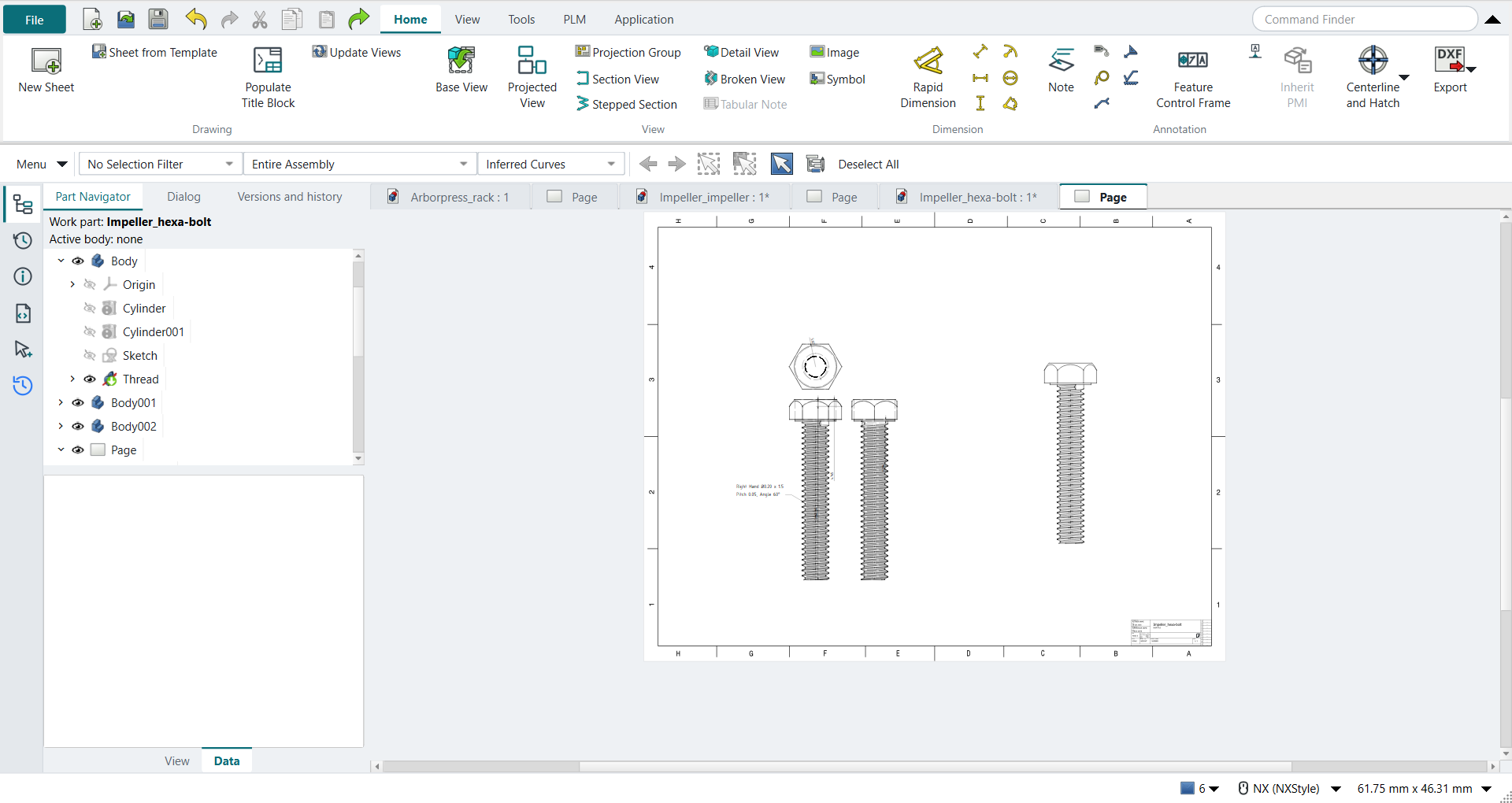
Select the screw’s bodies and click Base View, direction Front: the screw stands with its head up. Select the view, click Projected View, then Right and Above, and press MB2. The view above is the top view: the hexagon. Display Borders is already off, as in tutorial AZ.
Select the three views and turn on their Hard Hidden: hidden lines are drawn dashed. The top view now shows the shank under the head as a dashed circle.
2. Dimensions
Pick two vertices and click Vertical:
| View | Length | Book (in) |
|---|---|---|
Front |
the whole screw, from its end to the top of the head |
1.703 |
Front |
the head |
0.188 |
Front |
from the top of the head down to where the sphere meets the hexagon’s corners |
0.065 |
Right |
the step under the head |
0.016 |
3. The thread note
Select an edge of the thread on the front view and click Note.
Type Right Hand, click the Ø button, type 0.20 x 1.5, press Enter, type Pitch 0.05, Angle 60 and click the ° button.
Set the lettering height to 7 mm and the stub length to 12.7 mm, and press MB2.
The leader runs from the thread to the note.
The replay
| # | In the book (NX) | In FreeCAD NX-Style | Result | Notes |
|---|---|---|---|---|
BB1 |
Open Impeller_hexa-bolt (tutorial AQ’s part) |
File > Open (by script) |
same |
tutorial AQ’s screw (3 bodies): 1.7032 in long, 0.4920 across the head (the book’s 1.7032 and 0.492); head same solid as the reference: 0 mm³ differ, box within 8e-14 mm, 9 faces (9 in the reference) |
BB2 |
File > Drafting |
Ctrl+Shift+D |
same |
TechDrawWorkbench |
BB3 |
Sheet: E-34 X 44, Scale 8.0 : 1.0, OK |
ribbon 'Home › Drawing > New Sheet'; the sheet’s Template, Scale and Projection |
differs |
ANSIE_Landscape.svg: 1118.0 x 864.0 mm (the book’s 44 x 34 in), scale 8.0, Third angle. NX asks for size, scale and projection in one Sheet dialog; FreeCAD’s New Sheet uses the default template and these are the sheet’s properties |
BB4 |
Base View: Front, a click to place it |
the screw’s bodies selected + ribbon 'Home › View > Base View', MB2 on the sheet; the view’s Direction Front |
differs |
edges span (12.4968, 43.2841) mm unscaled (the screw: 43.261 tall); scale 8.0. As in tutorial AZ, the direction is the view’s property |
BB5 |
Add the orthographic views Right and Top |
front view selected + ribbon 'Home › View > Projected View', Right and Above, MB2 |
same |
directions {'right': (1.0, 0.0, 0.0), 'top': (-0.0, 0.0, 1.0)} |
BB6 |
Preferences > Drafting > View: Display Borders off |
nothing to press: the sheet’s Show Frames is off |
differs |
Show Frames False. NX shows the borders until this is unchecked; FreeCAD’s sheet starts with Show Frames off. Its Turn View Frames On/Off stays greyed in FreeCAD 1.1.4, so NX-Style has no Display Borders button; how the sheet looks was not measured |
BB7 |
Select the views, RMB > Settings > Hidden Lines: Process Hidden Lines, Dashed Lines, OK |
the three views selected; their Hard Hidden property on |
differs |
the top view shows the shank under the head as a dashed circle (radius 3.175 mm among its hidden circles [2.4876, 3.175, 4.9149]). NX’s view Settings dialog; TechDraw’s Hard Hidden draws them dashed |
BB8 |
Insert > Dimensions > Linear: vertical dimensions 1.703, 0.188 and 0.065 on the front view, 0.016 on the right view |
two vertices picked + ribbon 'Vertical' |
differs |
(view, book in, drawing in, model in): [('front', 1.703, 1.7032, 1.7032), ('front', 0.065, 0.0647, 0.0647), ('front', 0.188, 0.1876, 0.1876), ('right', 0.016, 0.0156, 0.0156)]. The 0.065 runs to where the head’s sphere meets the hexagon’s corners. Points with no vertex of their own (the screw’s end, cut by the thread) get a cosmetic vertex on the edge there |
BB9 |
Note: 'Right Hand Ø0.20 x 1.5', 'Pitch 0.05, Angle 60°' (Ø and ° from the Symbols tab), a leader from the threaded shaft; Settings: Lettering Height and the leader’s length increased |
a thread edge of the front view selected + ribbon 'Home › Annotation > Note', the text typed with the Ø and ° buttons, Lettering height 7 and Stub length 12.7 mm, MB2 |
differs |
note ['Right Hand Ø0.20 x 1.5', 'Pitch 0.05, Angle 60°'], height 7.0 mm; the arrow ends at model (x, z) (-3.1683, 18.8254) mm: on the shank’s thread (radius 3.175). NX drags the leader from the shaft and sets height and length in Settings afterwards; here they are fields of the dialog |
BB10 |
Radial: click the circle of the bolt in the top view |
the head’s top circle selected + ribbon 'Home › Dimension > Radial' |
differs |
R0.201 in (5.107310329165429 mm), the circle where the head’s sphere meets its top face (radius 0.2011 in from the model). The book’s figure labels this circle Ø0.200, the size of its radius; TechDraw’s Radial gives R |
BB11 |
Base View: Isometric, placed beside the others |
the screw’s bodies selected + ribbon 'Home › View > Base View', MB2; Direction isometric |
same |
direction (0.57735, -0.57735, 0.57735), 668 edges, scale 4.0 (half the sheet’s, to fit beside the views) |
BB12 |
Save |
file name given once by script (the system file dialog is not driven); a change, then the Ctrl+S key |
same |
Impeller_hexa-bolt.FCStd rewritten by Ctrl+S: the file holds the change and the part is unmodified afterwards (modified before the key: True); FreeCAD format, not .prt |
| Result | Means |
|---|---|
same |
The book’s NX steps work as written. |
differs |
It works, but the FreeCAD way is different; the notes say how. |
limit |
The book’s way fails in FreeCAD itself; a workaround follows in the next steps. |
missing |
FreeCAD has no such function; a stand-in follows. |
skipped |
Not replayed; the notes give the reason. |
FAILED |
Did not work. |
The views' directions are checked, and the top view must show a hidden circle of the shank’s radius. Each dimension is compared with the screw’s own geometry: its height, the head, the step, and where the head’s sphere meets the hexagon. It must also match the book’s number to its three decimals. The note’s arrow is traced back from the sheet into the model and must end on the threaded shank.
What differs from NX
-
As in tutorial AZ, the sheet’s size, scale and projection are properties, and a view’s direction is a property.
-
NX sets the hidden line style in the views' Settings dialog. TechDraw’s Hard Hidden draws hidden lines dashed.
-
NX drags the leader from the shaft and sets the lettering height and leader length in Settings afterwards. Here they are fields of the Note dialog.
-
The note’s text is the book’s. It gives Ø0.20, while AQ’s thread is the book’s 1/4-20 UNC on a Ø0.25 shank.
-
The book’s figure labels the circle on top of the head Ø0.200, which is the size of its radius (0.201). TechDraw’s Radial shows it as a radius.
-
TechDraw computes hidden lines for the detailed thread, so these views take longer to appear than plain ones.