Tutorial AZ: Arbor Press Rack Drawing
| Source |
Ming C. Leu, Wenjin Tao, Amir Ghazanfari and Krishna Kolan, NX 12 for Engineering Design (Missouri University of Science and Technology), sections 5.2 (creating a drawing), 5.3 (dimensioning) and 5.4 (sectional view). |
| You learn |
New Sheet (size, scale, projection), Base View, Projected View, dimensions, Section View |
| Part |
tutorial AT's rack, |
| Sizes |
the book’s, in inches, typed in millimetres: the drawing’s dimensions read 25.4 times the book’s numbers. |
Step by step
1. The sheet
Open Arborpress_rack and press Ctrl+Shift+D for Drafting.
Click New Sheet.
In the sheet’s properties, choose the template ANSIB_Landscape.svg (B, 11 x 17 in), the scale 0.04 (1:25) and Third angle.
2. The views
Select the rack’s body and click Base View. Set the view’s direction to Front and press MB2 to place it.
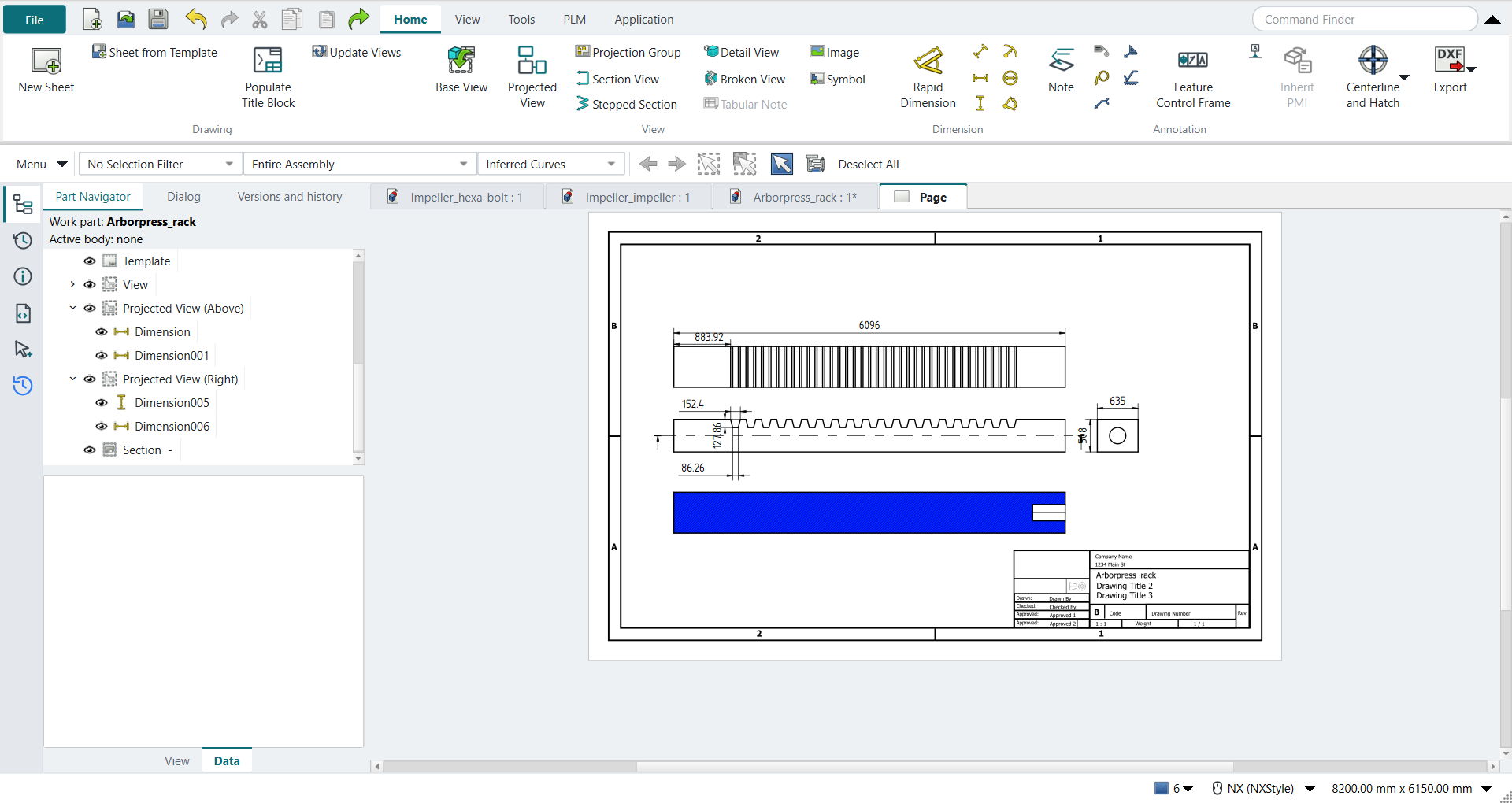
Select the front view and click Projected View. Click Above and Right, then press MB2. The top view and the right side view appear lined up with the front view, at its scale. The right view shows the hole in the end of the rack as a circle.
The book now turns off Display Borders. A FreeCAD sheet starts with Show Frames off, so there is nothing to press.
3. Dimensions
Pick the two end vertices of each length in the view and click Horizontal or Vertical:
| View | Length | Book (in) | Drawing (mm) |
|---|---|---|---|
Top |
the rack’s length |
240 |
6096 |
Top |
from the left end to the first tooth space |
34.8 |
883.92 |
Front |
the tooth space’s opening |
6.000 |
152.4 |
Front |
its floor |
3.396 |
86.26 |
Front |
its depth |
5.034 |
127.86 |
Right |
the height |
20 |
508 |
Right |
the width |
25 |
635 |
Drag each dimension clear of its view. Where a point has no vertex (the foot of a tooth space), the replay puts a cosmetic vertex on the edge there first.
The replay
| # | In the book (NX) | In FreeCAD NX-Style | Result | Notes |
|---|---|---|---|---|
AZ1 |
Open Arborpress_rack (tutorial AT’s part) |
File > Open (by script) |
same |
tutorial AT’s rack: same solid as the reference: 0 mm³ differ, box within 2.3e-12 mm, 84 faces (84 in the reference) |
AZ2 |
File > Drafting |
Ctrl+Shift+D |
same |
TechDrawWorkbench |
AZ3 |
Sheet: Standard Size B 11 x 17, Custom Scale 1:25, OK |
ribbon 'Home › Drawing > New Sheet'; the sheet’s Template, Scale and Projection |
differs |
ANSIB_Landscape.svg: 431.8 x 279.4 mm (the book’s 17 x 11 in), scale 0.04, Third angle. NX asks for size, scale and projection in one Sheet dialog; FreeCAD’s New Sheet uses the default template and these are the sheet’s properties |
AZ4 |
Base View: Model View to Use Front, Scale 1:25, a click to place it |
body selected + ribbon 'Home › View > Base View', MB2 on the sheet; the view’s Direction Front |
differs |
edges span (6096.0, 508.0) mm, the Part API (6096.0, 508.0) (240 x 20 in); scale 0.04 from the sheet. NX lists the model views in the Base View dialog; TechDraw’s view takes its direction as a property |
AZ5 |
Projected View: move the cursor above and to the right of the front view and click; Close |
front view selected + ribbon 'Home › View > Projected View', Above and Right, MB2 |
same |
{'top': {'direction': (-0.0, 0.0, 1.0), 'span': (6096.0, 635.0), 'Part API': (6096.0, 635.0), 'scale': 0.04, 'at': (175.0, 182.86)}, 'right': {'direction': (1.0, 0.0, 0.0), 'span': (635.0, 508.0), 'Part API': (635.0, 508.0), 'scale': 0.04, 'at': (329.62, 140.0)}}; the right view shows the hole as a circle (Ø254 mm): True; each lined up with the front view at its scale |
AZ6 |
Drafting Preferences > View: Display Borders off, OK |
nothing to press: the sheet’s Show Frames is off |
differs |
Show Frames False. NX shows the borders until this is unchecked; FreeCAD’s sheet starts with Show Frames off. Its Turn View Frames On/Off stays greyed in FreeCAD 1.1.4, so NX-Style has no Display Borders button; how the sheet looks was not measured |
AZ7 |
Dimensions: 240 and 34.8 on the top view; 6.000, 3.396 and 5.034 on the front view; 20 and 25 on the right view; each dragged clear of its view |
two vertices picked + ribbon 'Horizontal' or 'Vertical' (the inferred direction of NX’s Rapid) |
differs |
(view, ribbon, book in, drawing mm, model mm): [('top', 'Horizontal', 240.0, 6096.0, 6096.0), ('top', 'Horizontal', 34.8, 883.92, 883.92), ('front', 'Horizontal', 6.0, 152.4, 152.4), ('front', 'Horizontal', 3.396, 86.2644, 86.2644), ('front', 'Vertical', 5.034, 127.8636, 127.8636), ('right', 'Vertical', 20.0, 508.0, 508.0), ('right', 'Horizontal', 25.0, 635.0, 635.0)]. All are the book’s numbers x 25.4. NX infers horizontal or vertical from the pointer; here the button says which. Where the view has no vertex at a point (a slot’s foot), a cosmetic vertex is put on the edge there first, as in tutorials H and N. The book’s text puts the 240 on the front view, its figures on the top view: the figures are followed |
AZ8 |
Section View: a click under the front view’s middle (arrows up), drag the section below it, MB1 |
front view selected + ribbon 'Home › View > Section View', direction 'pbUp', MB2 = OK; the section moved below the front view |
differs |
cut plane normal (0.0, 0.0, -1.0) through (3048.0, 317.5, 254.0) (the hole’s axis is at z = 254); the hole’s walls in the section are 254.0 apart (Ø254: the cut is through its axis); section spans (6096.0, 635.0). TechDraw cuts through the middle of the view as the book’s click does, and puts the new view on top of its base view: it is moved afterwards |
AZ9 |
Save and close the model (the drawing is saved in the part) |
file name given once by script (the system file dialog is not driven); a change, then the Ctrl+S key |
same |
Arborpress_rack.FCStd rewritten by Ctrl+S: the file holds the change and the part is unmodified afterwards (modified before the key: True); FreeCAD format, not .prt |
| Result | Means |
|---|---|
same |
The book’s NX steps work as written. |
differs |
It works, but the FreeCAD way is different; the notes say how. |
limit |
The book’s way fails in FreeCAD itself; a workaround follows in the next steps. |
missing |
FreeCAD has no such function; a stand-in follows. |
skipped |
Not replayed; the notes give the reason. |
FAILED |
Did not work. |
Every check reads the drawing back from TechDraw and compares it with the model. The views' edges must span what the Part API gives for each direction. Each dimension must equal the length the Part API’s tooth space and bar give, and the book’s number times 25.4. The section must show the hole’s walls one diameter apart, which happens only when the cut goes through the hole’s axis.
What differs from NX
-
NX asks for the sheet size, scale and projection in one Sheet dialog. In FreeCAD they are the sheet’s properties.
-
NX lists the model views in the Base View dialog. A TechDraw view takes its direction as a property.
-
NX places a projected view where you click round the parent. Here you click a side button. In NX a projected view follows its parent when the parent is dragged; here it stays where it was placed.
-
NX shows a border round each view until Display Borders is unchecked. A FreeCAD sheet starts with Show Frames off, and FreeCAD’s Turn View Frames On/Off stays greyed in 1.1.4. The replay reports the property; it did not measure how the sheet looks.
-
NX infers horizontal or vertical from where you move the pointer. Here you choose the Horizontal or Vertical button.
-
TechDraw dimensions attach to vertices. Where NX snaps to any point on an edge, the replay adds a cosmetic vertex first.
-
The book’s text puts the 240 on the front view, but its figures put it on the top view. The replay follows the figures.
-
TechDraw puts a new section view on top of its base view. You move it afterwards.