Sketching
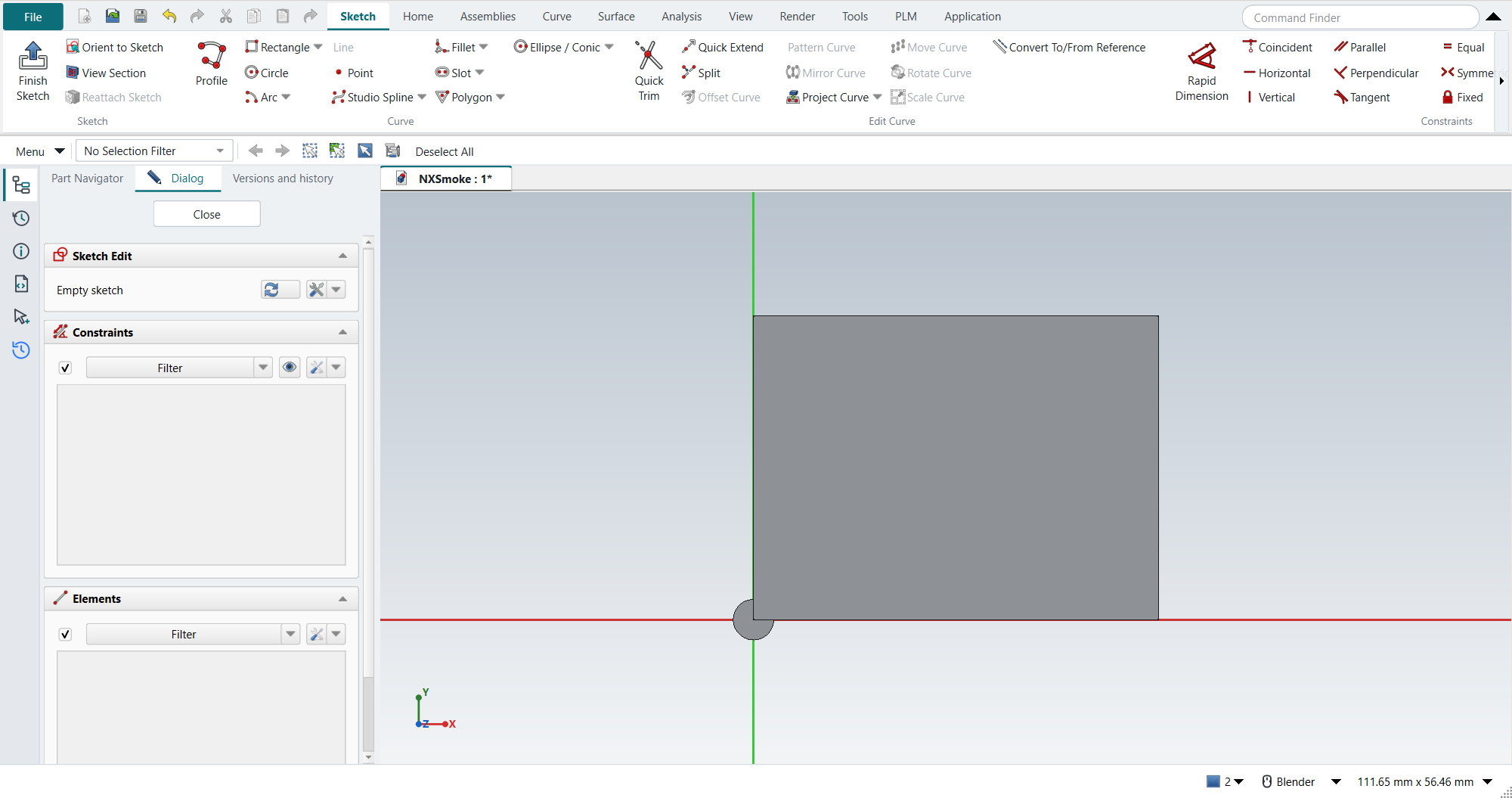
Starting a sketch
As in NX, you usually start a feature, not a sketch:
-
With nothing selected, X (Extrude), Revolve or Hole asks for a plane or face, then opens a sketch on it.
-
With a face or datum plane selected, the sketch opens on it at once.
-
Ctrl+Q (Finish Sketch) carries straight on into the feature’s dialog.
Home › Direct Sketch › Sketch makes a sketch on its own, as NX’s Sketch command does.
The Sketch tab
While a sketch is open, the contextual Sketch tab comes to the front. It holds the Sketch, Curve, Edit Curve and Constraints groups with NX’s names; NX command to FreeCAD command lists them.
Keys
| Key | NX command | FreeCAD tool |
|---|---|---|
Z |
Profile |
Polyline (press M while drawing to switch to arcs; NX drags MB1) |
R |
Rectangle |
Rectangle |
L |
Line |
Line |
A |
Arc |
Arc (centre and two end points) |
O |
Circle |
Circle |
P |
Polygon |
Regular polygon |
S |
Studio Spline |
B-spline by interpolation: Type Through Points (see Studio Spline) |
T |
Quick Trim |
Trim |
E |
Quick Extend |
Extend |
F |
Fillet |
Fillet (pick the two curves, then the radius) |
D |
Rapid Dimension |
Dimension |
C |
Geometric Constraints |
NX’s constraint gallery as a menu; the choice runs FreeCAD’s tool (see below) |
Shift+F8 |
Orient View to Sketch |
View sketch |
Ctrl+Q |
Finish Sketch |
Leave sketch |
MB2 ends the active curve tool, as in NX. FreeCAD’s Esc ends an open profile first and the tool only with a second press; MB2 ends both at once.
- Profile
-
A click on the profile’s first point closes it, as in NX: the last line gets a coincidence with the first point and the profile is done. Lines get Horizontal or Vertical when they are drawn within 2° of it. After an arc, FreeCAD carries on with a line held tangent to the arc and infers no Horizontal or Vertical on it. NX’s book clicks Line in the Profile dialog there; in FreeCAD press M twice (tangent line, perpendicular line, line) to get the plain line, then add Tangent if you want it.
Typed coordinates
NX’s curve and point tools take typed XC and YC values in boxes beside the pointer.
NX-Style sets FreeCAD’s on-view parameters to Position and dimensions (setting sketch_input), so the first point of a tool shows X and Y fields as well as the length and angle fields.
Type a value, press Enter for the next field, and the point lands exactly there: Point, then 298.45 Enter 152.4 Enter makes a point at (298.45, 152.4) mm.
FreeCAD keeps typed coordinates as constraints: horizontal and vertical distances from the axes, or Coincident with the origin for (0, 0).
For a point on the origin, click the origin instead of typing 0 and 0: FreeCAD 1.1.4 then adds the Coincident twice, and the solver reports the second as redundant.
- Typed points that meet
-
In NX a point typed onto an existing end point is that point: NX infers the coincidence, so the book’s typed arcs and lines make a closed profile. FreeCAD 1.1.4 loses both halves of that, and NX-Style puts them back when each curve tool finishes:
-
The value typed is kept. FreeCAD writes each typed value’s constraint with six decimals, angles in radians: a typed 90° sweep becomes 1.570796 rad, and the end of an R63.5 arc lands 2e-5 mm off the point typed. NX-Style gives the constraint the number typed (π/2 here).
-
A point typed onto an end point joins it. FreeCAD finds the end point under a typed point, but it adds the typed constraints first; those already hold the point, so it drops the Coincident as redundant (the report view says "Autoconstraints cause redundancy" or "Redundant constraint is not an autoconstraint … Please report!"). When it keeps an inferred constraint, FreeCAD checks it before solving; where two arcs meet tangentially (tutorial AV’s R0.50 end between its R1.50 and R2.50 bands), the solved sketch can then be redundant, and it fails to solve from that curve on ("Solving the sketch failed"). NX-Style adds the Coincident for each point of the new curve that lies within 1e-4 mm of a point of another curve or of the origin (Validate Sketch’s default tolerance for missing coincidences), then puts back FreeCAD’s inferred constraints and the typed values, keeping each only if the solved sketch still needs it, as FreeCAD itself intends. At a tangential join that can leave out the second arc’s radius dimension: the join and the first arc then hold it.
The repair adds no undo step: Undo takes back the curve as before. The self-test draws two arcs and a line this way, and tutorial AV’s arm (7 arcs and a line), and checks that they make closed loops with no gap above 1e-7 mm (1e-9 mm for AV) and no redundant constraint; with the repair off, FreeCAD alone leaves gaps of 3.3e-5 mm and no Coincident.
-
Set sketch_input to dimensions for FreeCAD’s default (no position fields), none, or freecad to leave FreeCAD’s own choice alone.
Studio Spline
S and Studio Spline on the Sketch tab start NX’s default type, Through Points: the spline passes through every point you click or type. It is FreeCAD’s B-spline by interpolation, a cubic (degree 3). MB2 ends the spline and the tool, as in NX; at least two points make a spline.
NX’s dialog options are in FreeCAD’s tool panel (B-Spline Parameters) while the tool runs:
| NX | FreeCAD |
|---|---|
Type: Through Points |
First drop-down, From knots (the default here) |
Type: By Poles |
First drop-down, From control points, or M to switch while drawing; the button’s drop-down arrow starts it directly |
Degree |
Degree field, U and J (By Poles only: FreeCAD’s Through Points is always cubic) |
Closed |
Periodic check box; the button’s drop-down has both closed kinds |
FreeCAD’s own key for Periodic, R, is NX’s Rectangle here: it ends the spline tool and starts Rectangle, so tick the check box instead.
The button’s drop-down remembers the last kind picked, as FreeCAD’s toolbar does; S is always Through Points.
- Typed points
-
The first point takes X and Y, the next ones take the length and angle from the point before (FreeCAD has no X and Y fields after the first point). For the first point type X, click into the Y field, type Y and press Enter: FreeCAD places the point as soon as either field gets Enter or Tab, and the other then holds the pointer’s value. For each next point type the length, Enter, the angle in degrees from the X axis, Enter. Exercise 4.10.4’s spline through (-50, 0), (-25, 1), (25, -8) and (50, 0) is: -50, 0; then 25.0199920063936 and 2.29061004263853; 50.8035431835222 and -10.2039737217317; 26.2488094968134 and 17.7446716250569.
Two FreeCAD habits move typed points:
-
FreeCAD looks for automatic constraints at a typed point as it does at a click: a curve within its pick radius (5 pixels) of the point gets one. Zoomed out to 3.75 pixels per mm, the point typed 1 mm above the X axis went onto the axis, and the spline with it. Zoom in until the point is several pixels clear of nearby curves before typing it.
-
FreeCAD stores each typed length as a distance with six decimals, so a length typed with more digits is rounded to 1e-6 mm, and the solver moves the later points by the rounding: in the exercise the last point ends 0.7e-6 mm from its typed X. Dimension the points afterwards (below) for exact positions.
-
- Dimensions on through points
-
FreeCAD keeps each through point as a construction point on the spline (an internal knot alignment). Dimension and constrain those points as any sketch point: a Distance or Coincident on one moves it, and the spline follows through it. Typed values become constraints: the first point’s X and Y as distances from the axes, each typed length as a distance between two points.
Dimensions
Rapid Dimension (D) is FreeCAD’s Dimension tool, which infers the kind from the pick. Linear Dimension on the Sketch tab offers NX’s measurement methods: Horizontal and Vertical (FreeCAD’s horizontal and vertical distance) and Point-to-Point (FreeCAD’s Distance, also the Distance button).
- Hide
-
Select dimensions or constraints and press Ctrl+B, or MB3 > Hide, as in NX. FreeCAD hides them in its "virtual space"; its constraint list still shows them. Ctrl+Shift+K (Show) brings back the ones selected in that list, Ctrl+Shift+U (Show All) all of them. FreeCAD’s own Hide Selection does not hide sketch dimensions.
Geometric constraints
C (or Geometric Constraints on the Sketch tab) opens NX’s gallery: Coincident, Point on Curve, Tangent, Parallel, Perpendicular, Horizontal, Vertical, Horizontal and Vertical Alignment, Midpoint, Collinear, Concentric, Equal Length and Equal Radius, Fixed and Fully Fixed. A choice applies to what is selected; with nothing selected FreeCAD’s tool starts and you pick the curves, as in NX’s dialog. Some have no FreeCAD tool of their own and use the one that does the same with that pick: Horizontal or Vertical with two points aligns them, Symmetric with a line and a point is Midpoint, Coincident on two arcs or circles is Concentric, and Equal covers lengths and radii.
Point on Curve and Collinear are on the Sketch tab too. NX gives neither a key, and neither has one here.
- Collinear
-
FreeCAD has no collinear constraint. Select the line to move, then the line to align it with, then Collinear: both ends of the first line go on the line through the second, as point-on-curve constraints. When the two lines are already parallel (both horizontal, say), one end is enough and only one is added, so the sketch gets no redundant constraint. It is one undo step. Collinear takes a selection; it does not start a pick mode as FreeCAD’s own tools do.
- Not offered
-
NX’s Constant Length, Constant Angle, Point on String, Uniform and Non-Uniform Scale and Slope of Curve have no FreeCAD equivalent; a driving dimension does what Constant Length and Constant Angle do.
Constraints and degrees of freedom
NX’s status line says when a sketch is fully defined; FreeCAD’s Dialog panel says the same:
-
Under-constrained: N Degrees of Freedom while something can still move;
-
Fully constrained when nothing can.
Tutorial J follows the book’s triangle constraint by constraint, and the state matches the book’s at every step.
-
Fully Fixed on the Sketch tab is FreeCAD’s Block constraint; Relax Constraint switches a constraint off without deleting it (FreeCAD’s Toggle Active Constraint).
-
Dimensions get names in their properties (NX numbers them p0, p1 …). A dimension takes a formula after
=, for example=Constraints.width / 5 * 1.6, or a value from the Expressions table,=Expressions.L(Tutorial K).
Things that work differently
- Project Curve
-
FreeCAD 1.1 projects a picked edge as defining geometry: it becomes part of the profile. A circle drawn across a projected edge then fails to extrude ("Wire is not closed") until the projected edge is turned into reference geometry with Convert To/From Reference. NX makes regions from the circle and the edge.
- Fillet
-
FreeCAD’s sketch fillet makes the arc tangent but does not dimension its radius, so a later change can grow it. Add a radius dimension to keep it. A fillet also removes its corner, and with it what held the corner (a right angle, a snap to the origin); put back the horizontal, vertical or on-origin constraint it held.
- Offset Curve
-
FreeCAD takes the side and the distance from an MB1 click; type the exact distance into the offset dimension afterwards. With Add offset constraint on, FreeCAD 1.1.4 gives a closed loop one redundant constraint, so the sketch does not solve. Use Sketch › Select Redundant Constraints and delete it (see Known issues).
- Dynamic dimensions
-
NX shows a sketch’s dimensions while you draw and offers to scale the whole sketch to the first one; FreeCAD’s dimension tool asks for one value at a time.
See also
-
Tutorial I — Extend, Quick Trim, Fillet and an associative offset.
-
Tutorial J — constraints, degrees of freedom and formulas.