Modeling
The Modeling application is FreeCAD’s PartDesign workbench with NX’s ribbon. Ctrl+M switches to it from any other application.
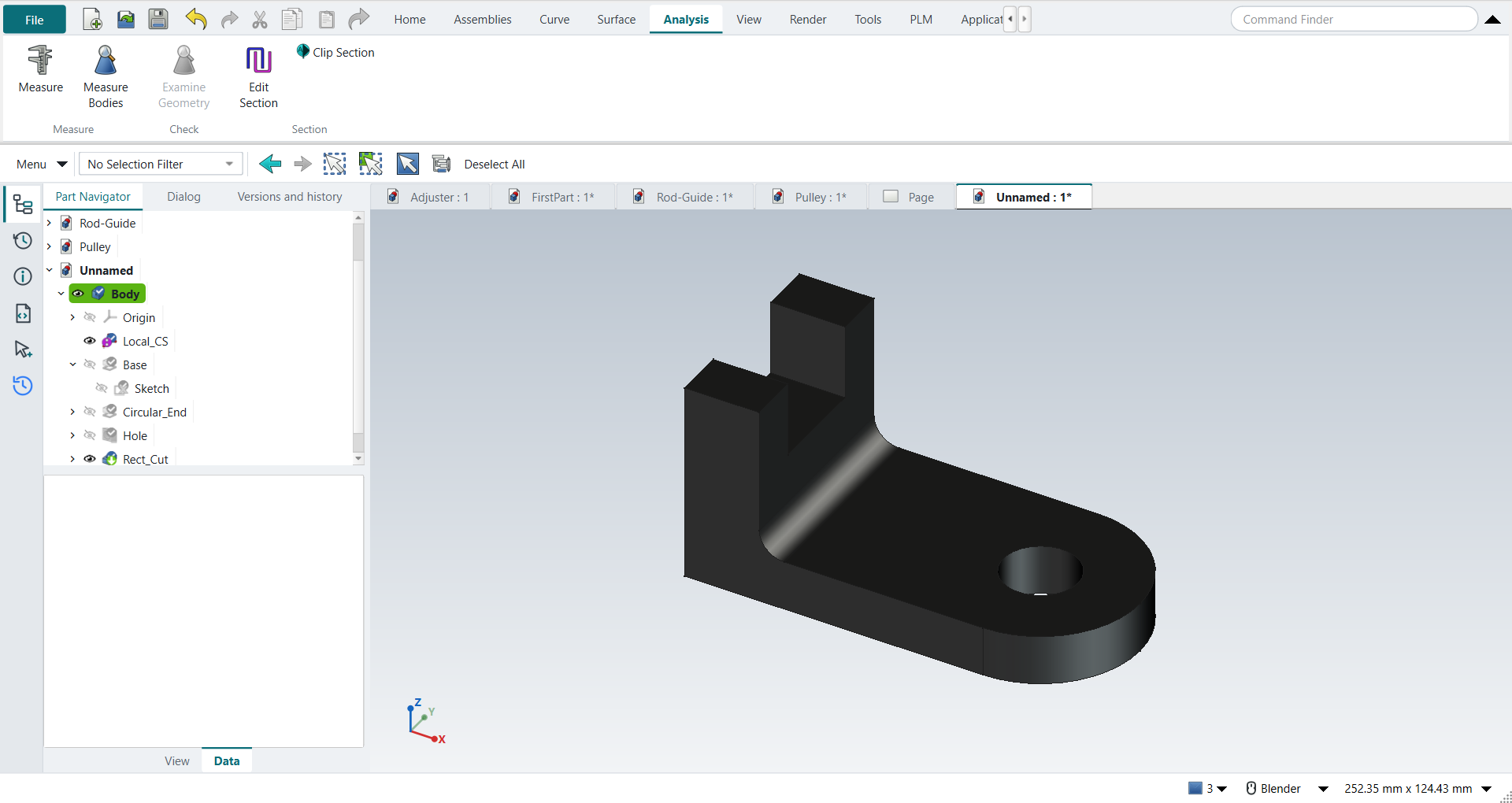
A new part
Ctrl+N works like NX’s Model template: the new part already has a Body, ready to sketch on.
Units are millimetres and kilograms (FreeCAD’s Standard schema), whatever FreeCAD itself was set to; see units in Settings.
The part gets its name at the first save (Ctrl+S).
Files are FreeCAD .FCStd files, not .prt.
The feature workflow
The Home tab’s Feature group works the NX way:
-
Start the feature: X for Extrude, or Revolve, Hole, Extrude (Subtract), Revolve (Subtract).
-
With nothing selected, pick a plane or a face; a sketch opens on it. With a face or datum plane already selected, it opens there at once; with a sketch selected, the feature starts from that sketch. To use curves of an existing sketch instead, pick them (Sections).
-
Draw the section (Sketching).
-
Ctrl+Q (Finish Sketch) carries straight on into the feature’s dialog.
-
Type the values and press MB2 (or OK).
Extrude
Extrude works the same however it is started: X, the ribbon, the Command Finder, the radial menu, or Edit Parameters on an existing extrude. Its dialog has two parts. At the top, the NX command box shows the section, the body and the Boolean. Below it is FreeCAD’s own Pad or Pocket panel, where the limits, the direction and the draft are typed.
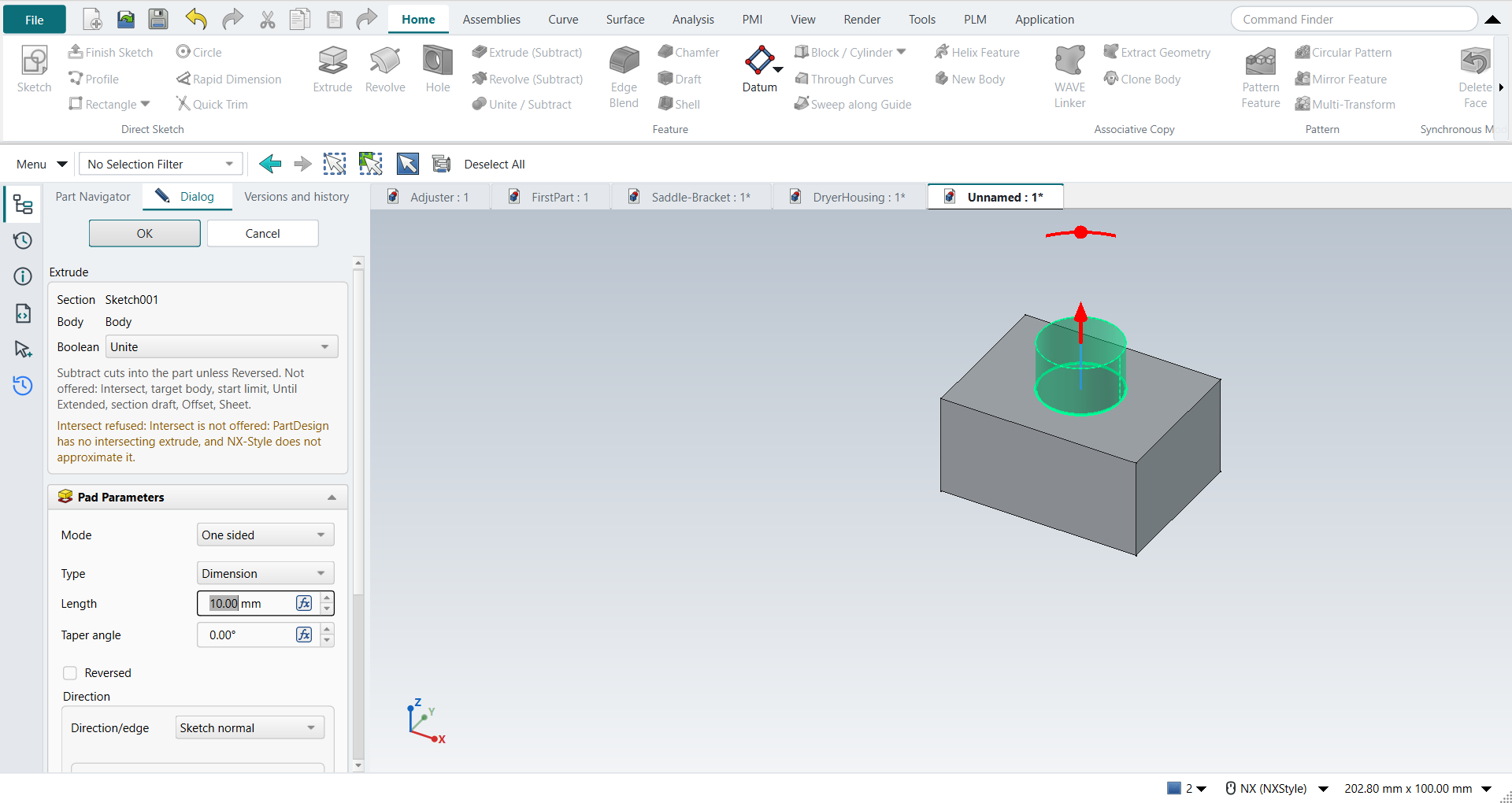
Boolean
| NX Boolean | What NX-Style builds |
|---|---|
None (a new body) |
A Pad that starts a solid. In a Body that has no solid yet, the Pad goes into that Body. Otherwise a new Body is made, with a sub-shape binder of the sketch, and the Pad goes in there. That Pad’s custom direction is set to the sketch normal, because the binder’s face can point the other way. The active Body does not change, so later extrudes still go to the body you were working on. |
Unite |
A Pad in the Body that holds the sketch. |
Subtract |
A Pocket in the Body that holds the sketch. |
Intersect |
Not supported. It is in the list, but greyed out, and choosing it gives the reason in the dialog. NX-Style does not approximate it. |
The Boolean starts as NX infers it: Unite when the sketch’s Body already has a solid, otherwise None (a new body). The Boolean names follow NX 2212, as in Shih’s NX 2212 exercises. Extrude (Subtract) starts with Subtract chosen. Changing the Boolean replaces the preview Pad with a Pocket, or the reverse; the length typed so far is kept. Unite and Subtract always work on the Body that holds the sketch. NX lets you pick another target body; NX-Style does not.
| Subtract cuts into the part, against the sketch normal, unless Reversed is ticked. NX keeps the same direction for every Boolean, so there you reverse it. |
Errors, OK and Cancel
The command box’s last line shows the state of the extrude.
-
An error leaves OK unavailable, and MB2 does nothing. For example: FreeCAD cannot build the feature from these values, or a Unite misses the part and would leave a separate solid (NX: “tool body does not intersect the target”), or Unite or Subtract is chosen when there is no solid to work on.
-
A warning does not stop OK. For example: a Subtract that removes nothing, or a number the field read differently from what was typed. With a comma as the decimal separator,
3.175is read as 3175 mm. -
OK (or MB2) adds one undo step, named Extrude. Editing an extrude adds one named Edit Extrude.
-
Cancel or Esc removes the preview, and with it any new Body or binder. Visibility and the selection go back to how they were, and nothing is added to the undo list. The sketch drawn inside the command stays, as its own undo steps.
-
While the dialog is open, the Type Filter is switched off so the command can pick what it needs. It comes back afterwards.
Not supported yet
These NX Extrude options are not offered, and the command box lists them:
-
Intersect;
-
choosing the target body;
-
a start limit away from the sketch plane on one side (FreeCAD’s Two sided gives a length each way);
-
Until Extended;
-
draft from the section, asymmetric or with matched ends (FreeCAD has a single taper angle);
-
NX’s section Offset (FreeCAD’s Offset belongs to Up to face);
-
body type Sheet;
-
changing the Boolean while editing an extrude. Delete it and extrude again;
-
a section of curves from several sketches, or of edges of a solid.
Hole still opens FreeCAD’s own dialog directly. It does not have the command box yet.
Extrude limits
| NX | FreeCAD (in the Extrude dialog) |
|---|---|
Value |
Dimension |
Start 0, End d, Reverse Direction |
Dimension d, Reversed ticked (the book’s −ZC 0.5 in) |
Symmetric Value |
Symmetric (the value is the total width, as in NX since NX 1926) |
Start and End limits on both sides |
Two sided (a length each way) |
Until Next |
To first |
Until Selected |
Up to face |
Through All |
Through all |
| To first and Up to face into a hole stop 1 mm into the part in FreeCAD 1.1.4 (Known issues). Tutorial L shows the workaround. |
Sections
Extrude and Revolve take their section as NX’s Section collector does: a whole sketch, or some curves of one sketch. The Curve Rule on the Top Border Bar, next to the Selection Scope, says what one pick adds.
-
Inferred Curves (the default) takes the whole sketch, as before.
-
Single Curve takes the picked curve.
-
Tangent Curves and Connected Curves take its chain (Selecting); Connected stops where three curves meet.
The curves can be picked before the command, or after it starts. With nothing selected the command asks for a sketch plane, as before; pick a sketch curve instead, and FreeCAD’s plane pick closes and the dialog opens with that curve. Every further pick adds to the section, and Ctrl+MB1 on a picked curve takes it out. A plain click on a picked curve changes nothing: FreeCAD would select the whole sketch there, and only Inferred Curves takes the whole sketch. The section’s curves stay selected, so they show which they are, and the command box counts them (Select Curve (10)); its tooltip names them. Where a solid’s face or edge lies on a curve, hold MB1 for QuickPick and choose the sketch’s curve.
The feature’s Profile is those curves only, so one sketch can hold several loops that share curves or overlap, as the impeller casing of tutorial AG does. Until the curves close, the command box says where the section is open or branches, and OK is unavailable. A sketch used in part stays shown after OK, because its other curves are still to be used; a whole sketch is hidden, as before. A section of a new body (Boolean None when the sketch’s Body has a solid) is a binder of the picked curves only.
FreeCAD names a curve after the sketch’s shape, not after its geometry number: outside the sketch, the first line drawn need not be Edge1.
Revolve
Revolve has the same command box as Extrude, over FreeCAD’s Revolution panel (Groove for Subtract). Revolve (Subtract) starts with Subtract chosen; Intersect is shown and refused. OK adds one undo step, named Revolve, and Cancel or Esc leaves nothing behind.
| NX | What NX-Style builds |
|---|---|
Specify Vector XC, YC, ZC through Specify Point (0, 0, 0) |
The Body’s own X, Y or Z axis. −XC, −YC and −ZC tick Reversed. |
A vector through another point |
A datum line through that point, which the Revolve keeps (Cancel removes it). |
Sketch H axis, Sketch V axis, Line… |
The sketch’s axis, or the sketch line picked after Line…. Sketch V axis is the default, as in FreeCAD. |
Limits Start 0, End 180 |
Angle 180. With the Start on the other side of the sketch plane (Start −30, End 120): Two angles, 120 and 30. |
Start and End on one side of the sketch plane, neither 0 |
Not supported: FreeCAD revolves from the sketch plane. The command box says so and OK is unavailable. |
The box drives FreeCAD’s panel: what it sets shows there, and what is typed there shows in the box. A new axis rebuilds the preview, because FreeCAD’s panel takes an axis only from its list. When editing a Revolve, change its axis in FreeCAD’s axis list; the Boolean cannot change either.
Primitives: Block, Cylinder, Cone, Sphere
Block, Cylinder, Cone and Sphere are separate buttons in the Feature group (NX has them under More › Design Feature). Each opens NX’s dialog in the task panel: Type, the point (Origin, Axis or Center Point), Dimensions and Boolean. The solid is previewed as you type, and the last lengths, type and vector are kept for the next time.
| Command | NX types offered |
|---|---|
Block |
Origin and Edge Lengths, Height and Two Points, Two Diagonal Points |
Cylinder |
Axis, Diameter, and Height |
Cone |
Diameters and Height |
Sphere |
Center Point and Diameter |
Specify Vector offers XC, YC, ZC, −XC, −YC and −ZC, and Reverse Direction. XC, YC and ZC are FreeCAD’s absolute X, Y and Z, because FreeCAD has no movable WCS.
Specify Point
NX’s Point dialog is part of the command’s panel: its Type and the XC, YC, ZC output coordinates. Type the coordinates, or pick in the graphics window; the pick goes to the highlighted step and is snapped by the Type.
-
Inferred Point: a vertex, the centre of an arc or a sphere, the nearer end of another edge, or the picked spot on a face.
-
Existing Point, End Point, Point on Curve/Edge, Point on Face.
-
Arc/Ellipse/Sphere Center: an arc, circle or ellipse, a sphere, or a flat face bounded by a circle (click the top face of a cylinder for its centre).
-
Between Two Points: two picks, and the point midway.
The point is copied, not linked: NX’s primitives are not associative either.
Boolean
| NX Boolean | What NX-Style builds |
|---|---|
None |
An additive primitive (PartDesign Additive Box, Cylinder, Cone, Sphere) in a new Body. In a part whose Body has no solid yet, it goes into that Body. |
Unite |
An additive primitive in the target body. |
Subtract |
A subtractive primitive (PartDesign Subtractive Box, …) in the target body. |
Intersect |
The primitive in a new tool Body, hidden, and a PartDesign Boolean (Common) with that Body in the target body. |
With one body in the part, that body is the target. With several, Select Body is highlighted: pick the body in the graphics window, or choose it from the list.
The result stays a feature in the body’s history. Edit Parameters (also on an Intersect’s Boolean) reopens the same dialog with the values; the Boolean cannot be changed there. Double-clicking the feature opens FreeCAD’s own primitive dialog instead.
OK, Apply, Cancel
-
OK (or MB2) adds one undo step, named after the command (Block); one Undo takes the primitive back, with any Body or Boolean it made.
-
Apply commits the primitive and keeps the dialog open for the next one.
-
Cancel or Esc leaves nothing behind.
-
An error leaves OK unavailable: a zero length, a Unite that would leave a separate solid, an Intersect that leaves nothing, or no target body.
-
Typed lengths keep their decimals, and a unit may be typed (
0.75 in).
Not supported yet
-
Cylinder’s Arc and Height, Sphere’s Arc, and Cone’s half-angle types and Two Coaxial Arcs; use Arc/Ellipse/Sphere Center for the point and type the sizes.
-
A vector from a picked face or edge.
-
The Point dialog’s other types (Cursor Location, Control Point, Intersection Point, Quadrant Point, …) and its Offset.
-
When editing, a Block is shown as Origin and Edge Lengths, whatever type made it.
-
The Boolean is not remembered between commands: each starts with None.
Thread
Thread is a button in the Feature group (NX: Insert › Design Feature › Thread). Choose the Thread Type, then click the cylindrical face to thread: a shaft for an external thread, a hole’s wall for an internal one. A face selected before the command is taken as the cylinder.
| Thread Type | What NX-Style builds |
|---|---|
Detailed |
A real helical thread: a PartDesign Subtractive Helix that sweeps the thread profile (a hidden sketch, ThreadProfile, in a plane through the axis) about the cylinder’s axis. |
Symbolic |
The cylinder keeps its shape. A SymbolicThread feature at the Body’s tip records the thread: its callout, diameters, pitch, angle, length and hand, in its NX Thread properties. |
Both types carry the same NX Thread properties (NX_Callout, NX_MajorDiameter, NX_Pitch, …), which drawings and PMI can read.
The values
The click fills in the nearest standard thread, and the Standard list shows which one. Choosing another entry fills in its values; values that match no entry read Custom.
-
A shaft is matched by its major diameter, a hole by its minor diameter (a hole is drilled at about the minor diameter).
-
Parts are metric. A diameter that is an inch size takes the UNC thread, as NX’s inch table does: a 0.25 in (6.35 mm) shank gets 1/4-20 UNC, pitch 1.27. Any other diameter takes the nearest ISO coarse thread: a 6 mm shank gets M6 x 1.
-
The tables are ISO 261 coarse pitches (first and second choice diameters, M1 to M64) and ASME B1.1 UNC (#1 to 2 in).
-
Minor Diameter is the basic profile’s: major − 1.082532 × pitch (ISO 68-1 and ISO 724 D1; ASME B1.1).
-
Angle is 60°; Length is the cylinder’s length.
Rotation is Right Hand or Left Hand. Start is the end of the cylinder nearest the click; Select Start takes the face at the other end, and Reverse Thread Direction swaps the ends.
The Detailed thread follows the basic profile: a crest flat of P/8 at the major diameter and flanks at half the Angle each side. It runs out through the start face and stops at Length; it never cuts past Length, so a thread up to a screw’s head leaves the head alone.
OK, Apply, Cancel
-
OK (or MB2) adds one undo step, Thread; one Undo takes the thread back, with its profile sketch.
-
Apply commits the thread and keeps the dialog open for the next one.
-
Cancel or Esc leaves nothing behind.
-
An error leaves OK unavailable: no cylinder picked, a Length past the cylinder’s end, a Minor Diameter the flanks cannot reach, or a thread that removes nothing.
-
A warning says when the thread does not sit on the cylinder as a table thread would (a Major Diameter smaller than the shank leaves the crests on the shank).
-
Edit Parameters on the thread (or its profile sketch) reopens the dialog with the values: the diameters, pitch, angle, length, rotation and direction can change; the cylinder and the Thread Type cannot.
A Detailed thread takes a few seconds to recompute. The book’s hexagonal screw (NX 12 for Engineering Design, 4.7.1) threads its 0.25 in shank Detailed with the defaults; the self-test replays that case and checks the volume against a separate build of the same helix.
Not supported yet
-
A start on a face or datum plane part-way along the cylinder: the thread starts at an end.
-
Symbolic’s Method, Form, Number of Starts, Tapered and Full Thread: threads are single-start and straight.
-
Fine pitch and UNF tables: type the values, and the callout reads Custom.
-
NX’s dashed display of a symbolic thread: the SymbolicThread feature shows the cylinder as it is.
Move Object
Move Object (Ctrl+T, or Move Object on the MB3 radial menu; NX: Edit › Move Object) moves bodies and objects, or copies of them. What is selected when it starts becomes its Objects; with nothing selected, click the objects in the graphics window or the Part Navigator (a second click on one takes it out again).
-
A click on a solid takes its Body, as NX selects a body. The move goes inside the Body, which keeps its Placement: free primitives, sketches and datums move by their Placement, a sketch or datum attached to the Body’s origin planes by its Attachment Offset, and everything built on them follows. This is because FreeCAD 1.1’s Unite / Subtract (PartDesign Boolean) ignores the target Body’s Placement: a Body moved by its Placement and then cut into would be cut where it was. A Body whose features refer to its origin directly (a Revolve about the origin’s Z axis, a Mirror on the XY plane) is moved by its Placement instead, and the dialog warns that a later Unite / Subtract into it would not see the move.
-
A Part object outside a Body (a Part primitive, an imported solid) moves by its Placement.
-
In an assembly, a click on a component takes its link, and the link moves.
-
A sketch or a datum picked as itself moves alone. An attached one moves through its Attachment Offset, so it stays attached.
Motion
| Motion | What you specify |
|---|---|
Distance |
Specify Vector (XC, YC, ZC, −XC, −YC, −ZC; Reverse Direction) and the Distance. |
Angle |
Specify Vector as the axis, Specify Axis Point (typed, or picked and snapped by its Point type), and the Angle; positive turns right-handed about the vector. |
Point to Point |
Specify From Point and Specify To Point, typed or picked. The objects move by the difference. |
Dynamic |
OK hands the object to FreeCAD’s Transform dragger (FreeCAD’s |
Result
-
Move Original moves the objects.
-
Copy Original leaves them where they are and makes Number of Copies copies: copy 1 moved once, copy 2 twice, and so on (four copies at 90° go round once).
-
Distance/Angle Divisions divides the motion: 100 mm with 4 divisions moves 25 mm.
A copy is not associative, as NX’s copy is by default:
-
A Body’s copy is a new PartDesign Body whose Base Feature is a static copy of the solid, already moved (a hidden Part feature, <body> solid). It is a body like any other: the primitives' Booleans and Combine can take it as a target, and new features build on it. Editing the original leaves the copy as it is.
-
A Part object’s copy is a static Part feature with its shape (Part’s Simple Copy).
-
A link’s copy is another link to the same object, so a copied component is still the same part.
-
Sketches and datums are moved only; Copy Original on them is refused with the reason.
The Body copy was chosen over PartDesign’s Clone and a SubShapeBinder: both keep the copy tied to the original, which NX’s default copy is not, and a Clone follows every later change of the original body.
OK, Apply, Cancel
-
The graphics window shows the result while the dialog is open: the objects are where OK will leave them, and the copies are there.
-
OK (or MB2) adds one undo step, Move Object; one Undo puts everything back and removes the copies.
-
Apply commits the move and keeps the dialog open with the same objects: the next Apply (or OK) moves them again, or makes more copies.
-
Cancel or Esc leaves nothing changed.
-
An error leaves OK unavailable: no objects, no copies, Copy Original on a sketch or datum, or Dynamic with several objects. A Distance or Angle of 0 is allowed with a warning that nothing moves.
-
The dialog remembers the motion, vector, distance, angle and result for the next time.
The book’s arbor press L-bar (NX 12 for Engineering Design, 4.7.3) moves its second block 200 in along ZC, and 4.6.9 moves a cylinder 5 in along XC; the self-test replays both by Ctrl+T and checks the placement, the bounding box, the one undo step and Undo, and then cuts a slot into the moved block with Unite / Subtract, checking the volume against the Part API.
Not supported yet
-
The other motions: Distance between Points, Radial Distance, Align Axis to Vector, CSYS to CSYS, Delta XYZ, Rotate by Three Points (use Distance, Angle or Point to Point).
-
A vector from a picked face or edge: choose one of the six axes.
-
Associative (a Move Object feature), Move Parents, Create Trace Lines, and the Layer options.
-
A Body or Part object whose Placement is set by an expression is refused: change the expression.
Datums
Feature › Datum has Datum Plane, Datum Axis, Point and Datum CSYS.
-
The Body has its own origin (XY, XZ and YZ planes and the axes). NX-Style keeps it hidden and FreeCAD shows it while you pick a sketch plane.
-
At Angle datum planes rotate about the face’s own axes in the attachment offset; NX lets you pick the hinge axis (Tutorial C).
-
Datum CSYS with nothing selected asks whether to continue without an attachment; NX places it at the WCS (Tutorial E).
Holes
Hole drills at the circle centres of a sketch on a face. Select the face (or a datum plane), click Hole, place the centres in the sketch with O and D, and Ctrl+Q continues into the Hole dialog. NX places a hole by its point and adds the location dimensions by itself.
Edge Blend, Chamfer, Draft, Shell
These are FreeCAD’s Fillet, Chamfer, Draft and Thickness. Select the edges or faces first, then the command.
Edge Blend also works the other way round: start it with nothing selected and it opens a selection collector; pick the edges (Tangent Curves takes a whole smooth chain from one pick), then OK hands them to the Fillet for the radius. It refuses what it cannot round (a face, an edge of another body) and says why (selection.adoc#_commands_that_collect_edge_blend).
| In FreeCAD 1.1.4, Shell can fail after Edge Blend on the same edges. Shell first, then blend (Tutorial F). |
Patterns and mirror
NX has one Pattern Feature with a Layout list; FreeCAD has separate buttons.
| NX layout | Button |
|---|---|
Linear |
Pattern Feature (FreeCAD’s Linear Pattern); Direction 2 is a tick box in the same dialog. NX’s negative pitch is FreeCAD’s spacing with Reverse. |
Circular |
Circular Pattern; the axis is chosen from a list in the dialog. |
Several at once |
Multi-Transform |
Mirror Feature: select the feature first, then start the command. Inside a Body the mirror unites by itself.
Design changes
-
Edit Parameters reopens the feature’s dialog. It is on the ribbon, the radial menu, and the MB3 menu of the feature in the Part Navigator. An extrude opens in the Extrude dialog with its command box (Extrude), so Cancel puts every value back. A Block, Cylinder, Cone or Sphere opens in its NX dialog (Primitives: Block, Cylinder, Cone, Sphere), and so does a Thread (Thread). Double-clicking the feature opens FreeCAD’s own dialog without the command box. NX also lets you edit a dimension shown in the graphics window; here the change goes through the dialog or the sketch.
-
F2 or MB3 › Rename in the Part Navigator gives a feature a name.
-
Make Current Feature rolls the part back to that feature; later features wait until you make the last one current again.
-
Suppress switches a feature off and on again (NX’s Suppress and Unsuppress). FreeCAD keeps the feature’s links in its properties; Tutorial M shows parent/child behaviour.
-
Update Model recomputes.
Later features follow a change, including a fillet added to the first sketch afterwards (Tutorial E).
Expressions
Ctrl+E opens the Expressions sheet: a FreeCAD spreadsheet named Expressions, with names in one column and values in the next.
A dimension uses a name as =Expressions.L.
Change the value in the sheet and the part follows (Tutorial K).
FreeCAD refuses names that are unit symbols: the newton N becomes N_holes, for example.
Materials and mass
-
Select the body and click Render › Material › Assign Material. Pick the material; the choice applies at once, and the dialog closes with Close.
-
Analysis › Measure › Measure Bodies shows volume, surface area, the material and density, mass and centre of mass in an Information window, in mm³, mm² and kg.
FreeCAD’s own Measure has no mass; Measure Bodies is NX-Style’s. FreeCAD 1.1 also applies the material’s appearance, so a steel body renders nearly black.
Associative copy, surfaces, synchronous modeling
-
WAVE Linker, Extract Geometry and Clone Body are FreeCAD’s sub-shape binder, shape binder and clone.
-
The Surface tab holds Through Curves, Swept, N-Sided Surface and the sheet operations from FreeCAD’s Part and Surface workbenches.
-
Synchronous Modeling is limited to Delete Face (FreeCAD’s Defeaturing).
The full list of buttons is in NX command to FreeCAD command.